
Channel Revenue Report provides statistics on the distribution of advertising campaign profitability across partner channels. The report allows you to evaluate the profitability of advertising groups and, if necessary, clear channels for new advertising campaigns.

The following partners operate via channels:
Adsense for Search
AirFind Google
ExplorAds Google
Intango
ViacomCBS Adsense
To launch the report, open the Reports dropdown menu and select Channel Revenue Report from the list:

FILTERS
You can customize the report with the following filters::
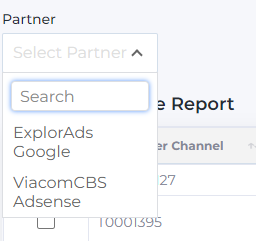
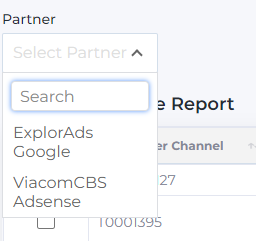
Partner - A list of partners with whom we collaborate. The list of available partners for work may vary for different teams.
Source - A list of traffic sources.

Websites - A list of targeting websites.
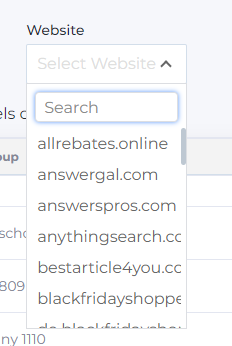
Multiple selection is available in Source and Website filters.
Date - Statistics display period.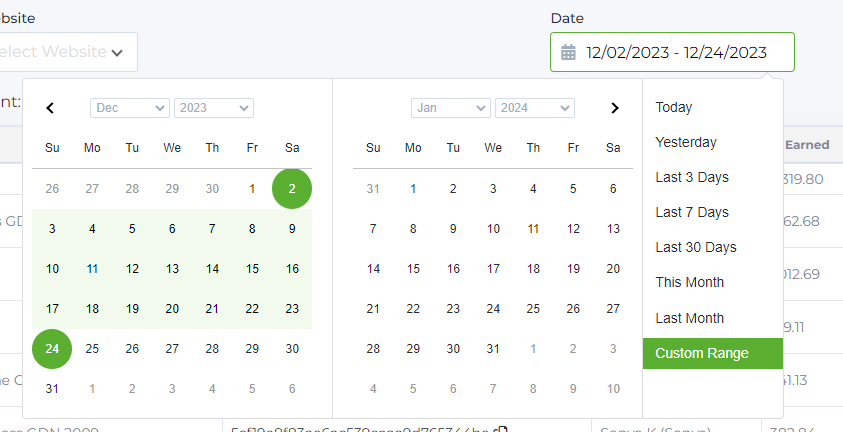
REPORT CONTENTS
Let's take a detailed look at the list of metrics that make up the report.
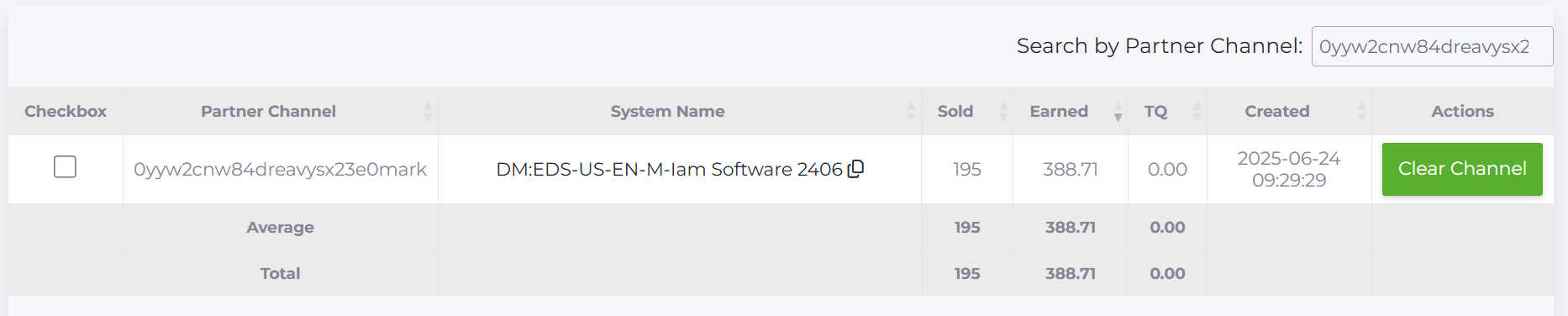
Partner Channel column - the name of the channel. The naming format is determined by partner. The sorting icon allows you to sort the list of channels in alphabetical order.
System name column - the name of the campaign in the Babkee system. The sort icon allows you to sort the list of groups in alphabetical order. Clicking on System Name opens information about the group in Data Searcher tool.

Keyword column shows the keyword or phrase inserted into the landing page’s search field, based on which advertiser ads are displayed on that page.

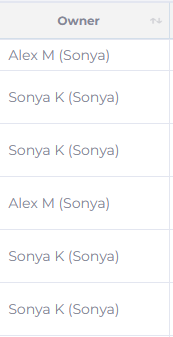
Owner column - a list of buyers to whom the channels are currently assigned. The field contains the name of the buyer and the name of the team to which they belong.
Sold column - The total number of clicks sold for the selected period.

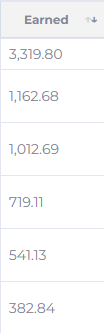
Earned column (USD) - total revenue for the selected period.
TQ quality column (Traffic quality) - traffic quality indicator.
The data is provided by the partner to whom we sell traffic. The value can range from 0 to 10 inclusive. This scale is used to assess the quality of traffic from the partner's perspective.
0 indicates bad traffic, 10 means good traffic.

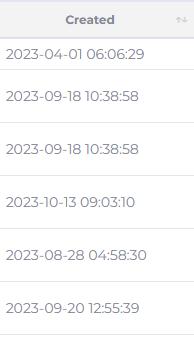
Created column - the date when channel was taken by buyer.
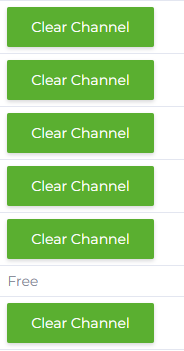
Actions column - allows to clear a channel for re-use in a new ad group. To clear a channel, click the Clear Channel button. If the channel is available, the field displays Free value.
Search by Partner Channel option lets you quickly determine which ad group is assigned to the selected partner channel.
FILTER SETUP
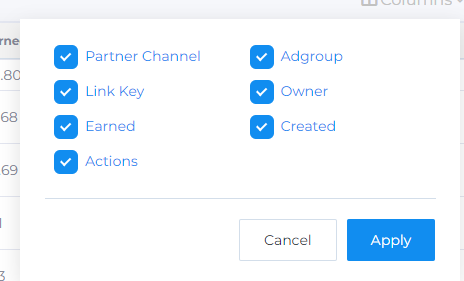
You can select which columns will be displayed in the report and which will be hidden. To display columns, check them in the list, then press Apply. Columns that are not checked will automatically be hidden from the report.
GROUP OPEARTIONS
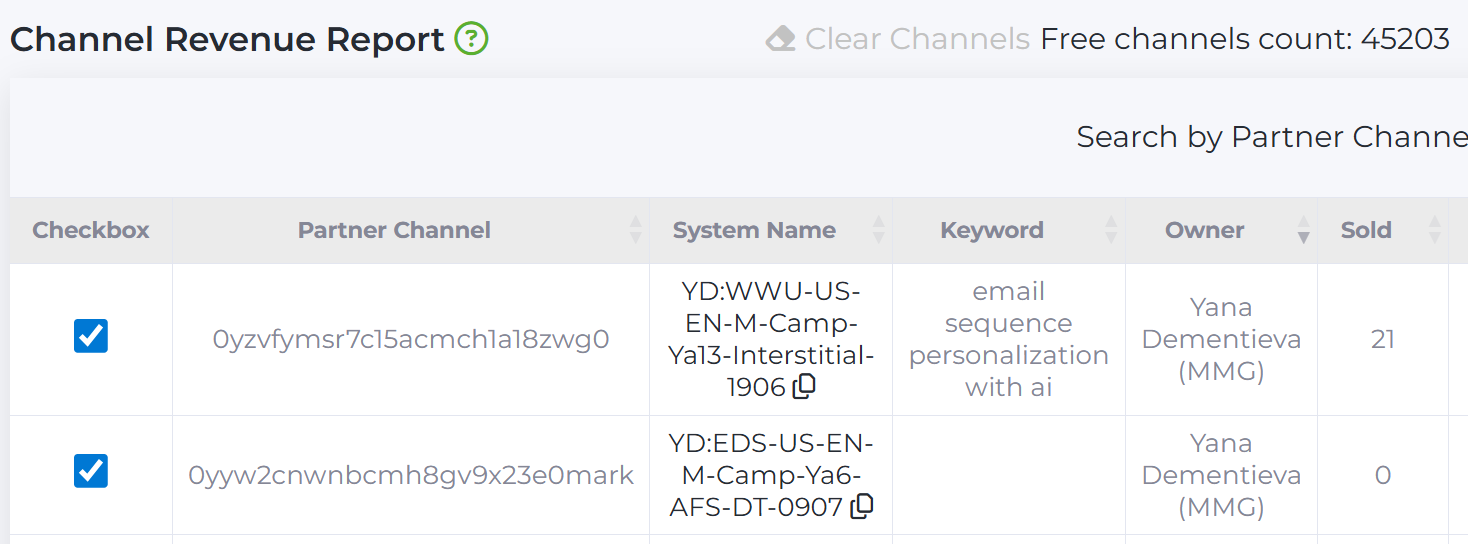
The report provides the ability for bulk clearing of channels. Select one or more channels by ticking the checkboxes next to the name and press Clear Channels above the list. It also shows the total number of free channels for the selected partners.
At the bottom of the table, the average and total values for Earned parameter are indicated.
Below the report you can see the number of data displayed per page. If necessary, the number of items displayed can be changed to 10, 25, 50, or 100.
