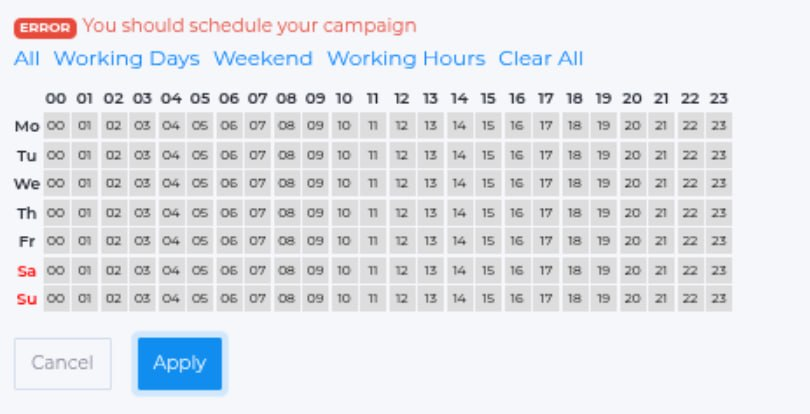
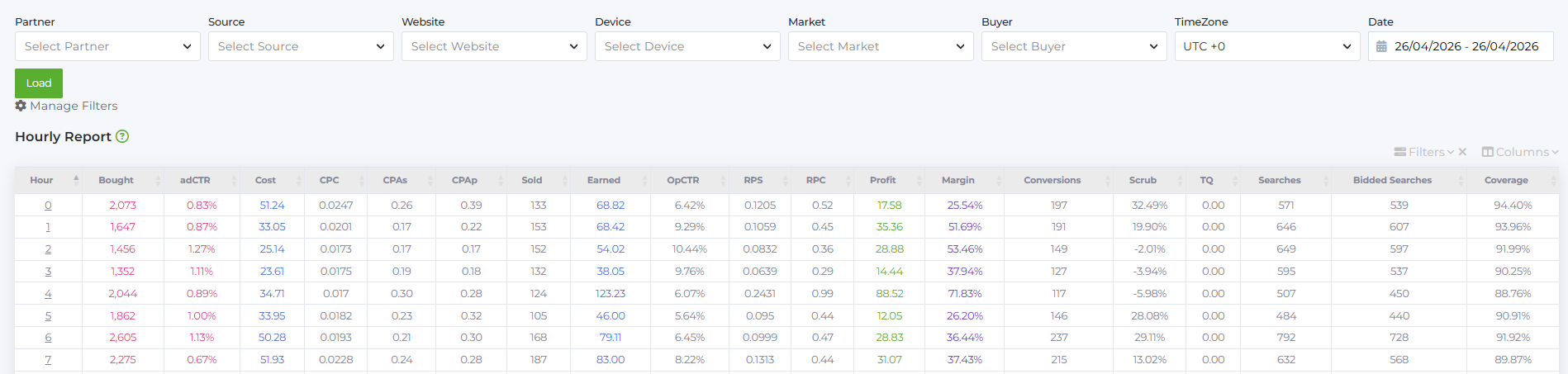
Hourly Report provides hourly statistics for a more detailed evaluation of advertising campaign performance.
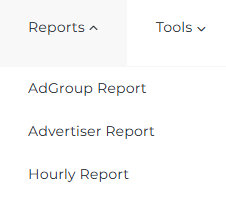
To access the report, open the dropdown menu Reports and select Hourly Report from the list:
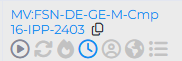
To work with the report for a selected ad group, click the clock icon in the System Name column in AdGroup Report:
FILTERS
At the top of the report, there are filters for detailed customization by parameters:

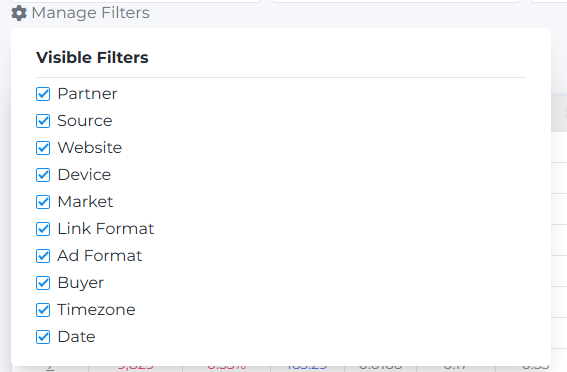
- Partner: list of partners available to the buyer.
- Source: list of traffic sources.
- Websites: list of websites receiving traffic.
- Device: list of devices receiving traffic.
- Market: list of countries (also called markets or geos) where ads are placed.
- Link Format: a list of URL templates (advertising links) with dynamically supplied parameters. This filter is required when working with the Yahoo partner to evaluate traffic for 2-click and 1-click MMG Yahoo.
- Ad Format: the format of the advertisement (different for each source).
- Buyer: list of buyers registered in the system.
- Time Zone: choose the time zone for displaying statistics. The report supports these time zones: UTC+1, UTC 0, UTC-4, UTC-5, UTC-7, UTC-8.
- Date: period for showing statistics with a convenient clickable calendar.
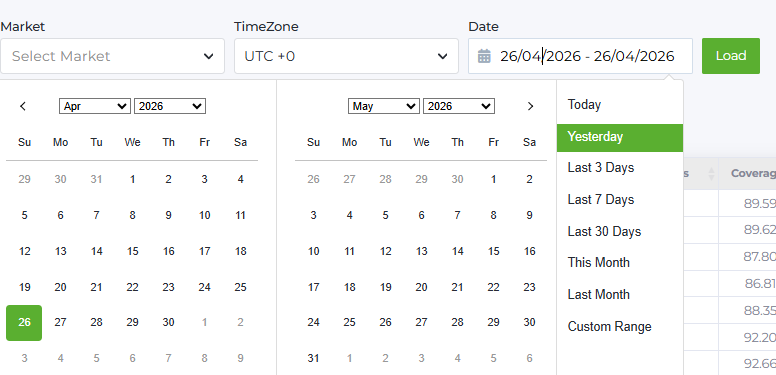
You can hide unnecessary filters by clicking Manage Filters:
Hourly Report consists of the following metrics:
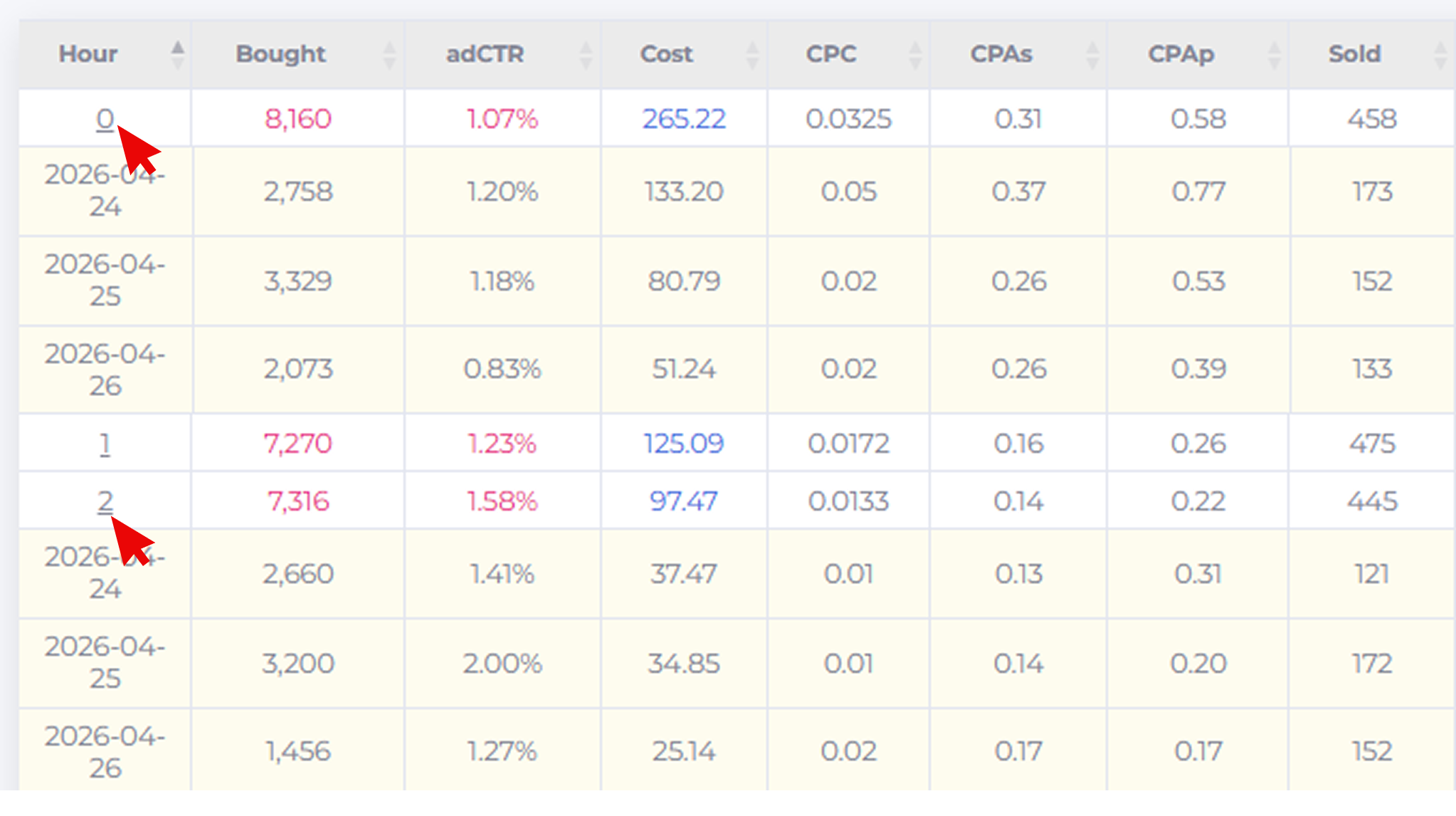
- Hour: Hour number from 0 to 23. Each corresponds to the time interval, e.g., ‘0’ means 00:00 to 01:00, ‘1’ means 01:00 to 02:00, etc.
- Bought: The number of purchased clicks per hour..
- adCTR: The average CTR in a specific source. Higher adCTR means better ad quality, counting users who clicked ads on that source.
- Cost: The amount spent on the ad campaign per hour.
- CPC: The cost of one purchased click (Bought) in the source per hour. Calculated as: Cost / Bought.
- CPAs: The average CPA per hour in the source. Calculated as: Cost / Conversions.
- Sold: The total number of sold clicks per hour.
- Earned: The total revenue per hour.
- opCTR: The average CTR on the target site per hour. Calculated as: Sold / Bought × 100%.
- RPS (Revenue per session): The average revenue per purchased click. Calculated as: Revenue / Searches.
- RPC (Revenue per click): The average revenue per sold click. Calculated as: Earned / Sold.
- Profit: The net profit per hour. Calculated as: Earned - Cost.
- Margin: The margin per hour Calculated as: Profit / Earned × 100%.
- Conversions: The number of conversions per hour.
- Scrub: The scrub rate in the total traffic per hour. Calculated as: (1 - Sold / Conversions) × 100%.
Positive scrub means conversions exceeded sold clicks; possibly removed by partner due to issues like bots or delayed data.
Negative scrub means sold clicks exceeded conversions; may be due to multiple clicks from the same user or tracking limits.
Zero scrub indicates sold clicks equal conversions; this is rare and normal.
- TQ (Traffic quality): The traffic quality metric from the partner’s side.
- Clicks: The total actual clicks on the ad per hour.
- Passed clicks: the number of actual clicks on the advertiser that passed verification by our bot detector.
- cScrub: Percentage of clicks filtered out by the bot detector. Calculated as: (Clicks - Passed Clicks) / Clicks × 100%.
- pScrub: Percentage of clicks passed by bot detector but not counted by Yahoo. Calculated as: (Passed Clicks - Sold) / Passed Clicks × 100%.
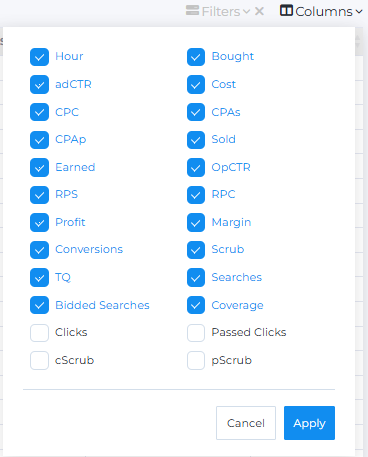
By default, Clicks, Passed Clicks, cScrub, and pScrub are hidden; you can add or remove them via the Columns button at the top right above the table.
At the bottom, averages and totals are shown for Bought, Cost, Sold, Earned, Profit, and Conversions.
You can select which columns to display or hide. Mark the columns you want in the list and click Apply; unmarked columns will be hidden.
FILTER SETTINGS
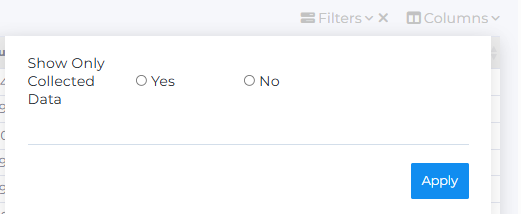
Besides data loading filters, you can set display filters via Filters button above the report.
To show only processed data, select Yes for Show Only Collected Data and click Apply.
Selecting multiple dates in Hourly Report sums data across those days. Clicking a specific hour shows data breakdown for each day separately.
COMMON NOTES ON USAGE
- Yahoo feeds have at least a 3-hour delay in collecting stats (so at 12:00, stats up to 09:00 are available).
- RSOC Google feeds have a 1-hour delay (at 12:00 stats up to 11:00).
- Other sources also have a 1-hour delay.
HOUR DISABLING FEATURE
For ad groups created for Propeller Ads (currently only), you can disable working hours. This feature becomes available after the ad group is created and campaign data from the source is synced with our system.
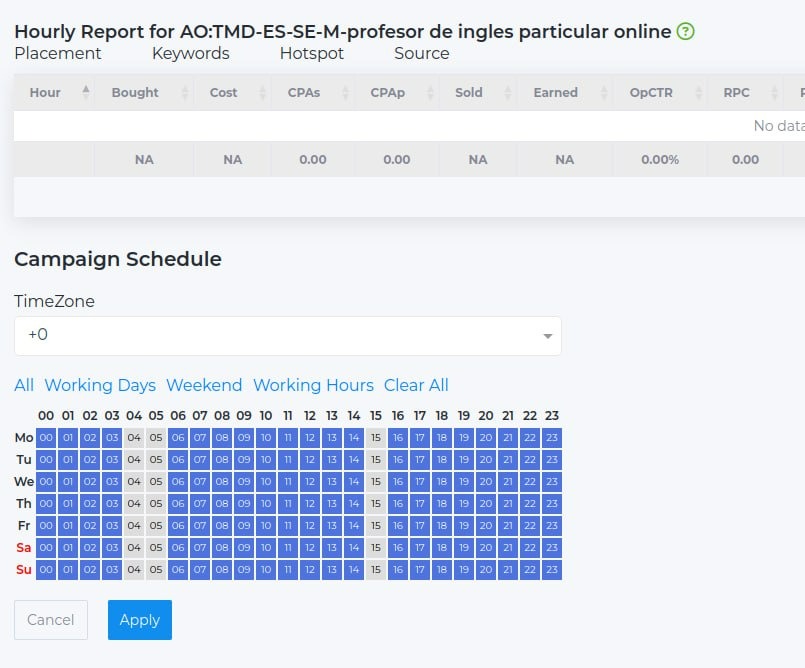
Campaign Schedule: the ad group working hours schedule.
Time Zone: select the time zone for working with your ad group.
Note: If you keep Time Zone UTC+0 and set hours accordingly, you might see UTC-5 as the default timezone in Propeller Ads. This is normal; no need to change the time zone on the source side. This helps keep all data aligned in one timezone. We recommend using UTC+0 since Babkee optimizes ad groups based on this timezone.
WHEN TO USE IT?
For example, in Advertiser Report or Adgroup Advertiser Report, you may notice a specific advertiser operates only during certain hours. If Inbound Clicks significantly exceed Shows, it means the advertiser is rarely shown. In such cases, enabling hourly targeting on the advertiser is useful.
FILTER USAGE:
- All: selects the entire period
- Working Days: selects only weekdays
- Weekend: selects only weekend days
- Working Hours: selects only working hours
- Clear All: clears all selections
To select multiple time intervals easily, drag the mouse cursor over the desired range instead of clicking each hour individually.
- The blue highlighted hours and days in the schedule represent the ad group’s active working times. After adjustment, click Apply to save changes.
- The Cancel button clears your new hour selections.
By default, users either keep the hours imported from Propeller Ads or select their own, but must choose at least one hour. Otherwise, an error will occur.