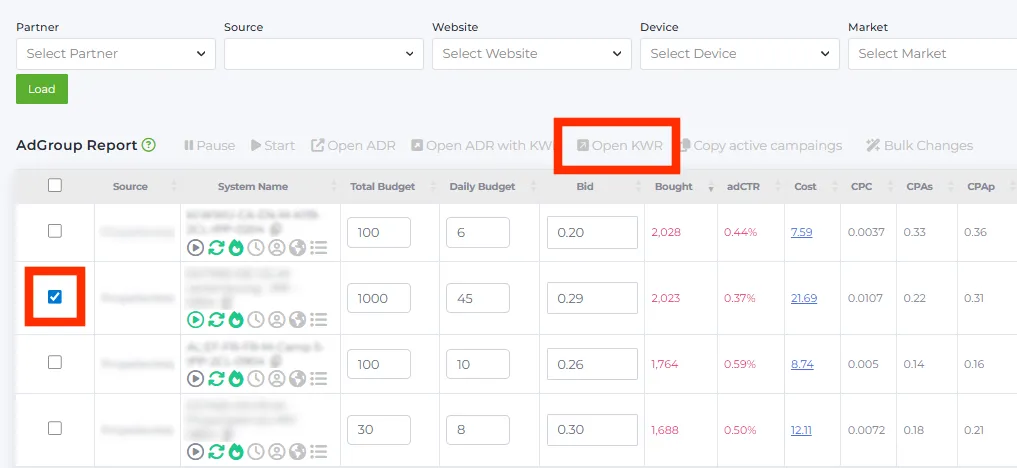
Keyword Report: A detailed report on keywords with rotation. This report is not in the main Reports menu; to access it, you need to open the AdGroup Report, select the desired campaign by checking the box, and click Open KWR above the table.
The Keyword Report is available only for partners and sources that support keyword rotation.
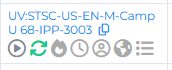
You can also open the Keyword Report for a selected ad group by clicking the icon with two arrows in the System Name column of the AdGroup Report.
The report will open in a new tab:
Filters
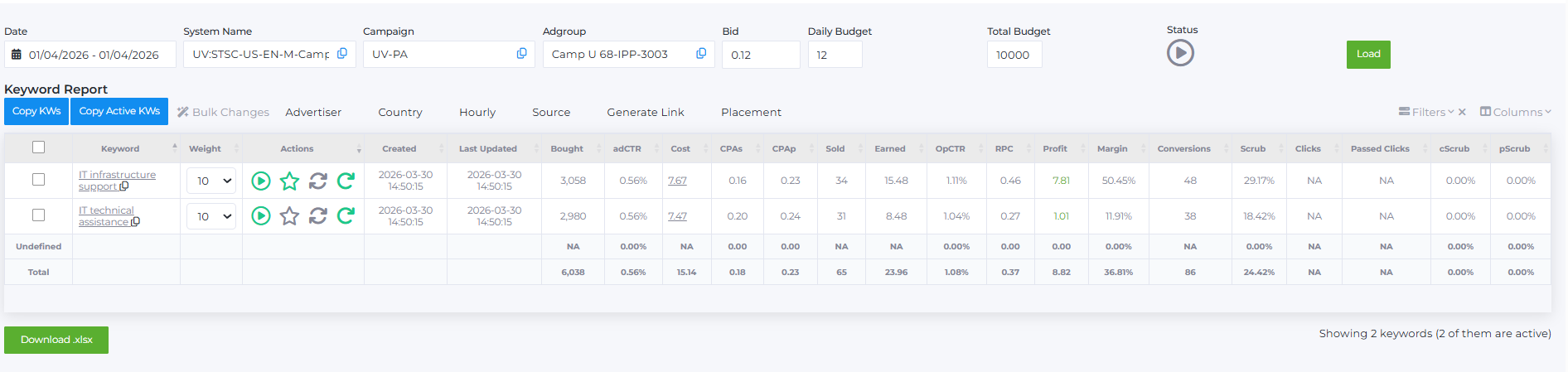
At the top of the page are filters:

- Date: select the date from the dropdown calendar.
- System Name: you can copy the system name by clicking the blue icon.
- Campaign: you can copy the campaign name via the blue icon.
- Adgroup: copy the ad group name via the blue icon.
- Bid: you can edit the bid value directly in the field.
- Daily Budget: edit the daily budget directly in the field.
- Total Budget: edit the total budget directly in the field.
- Status: green means the campaign is active, gray means paused.
Bulk Operations
Above the table are buttons for bulk actions:

- Copy Kws: copies all keywords or only those selected by checkboxes.
- Copy Active KWs: copies all active keywords (those with green status).
- Bulk Changes: allows you to change keyword weight, status, or rotation.

- Advertiser: links to the AdGroup Advertiser Report for the current campaign (opens in a new tab).
- Country: links to the Country Report for the current campaign (opens in a new tab).
- Hourly: links to the Hourly Report for the current campaign (opens in a new tab).
- Source: links to the campaign page on the source (opens in a new tab).
- Generate Link: generate URL for the campaign with selected keywords.
- Placement: links to the Placement Report for the current campaign (opens in a new tab).
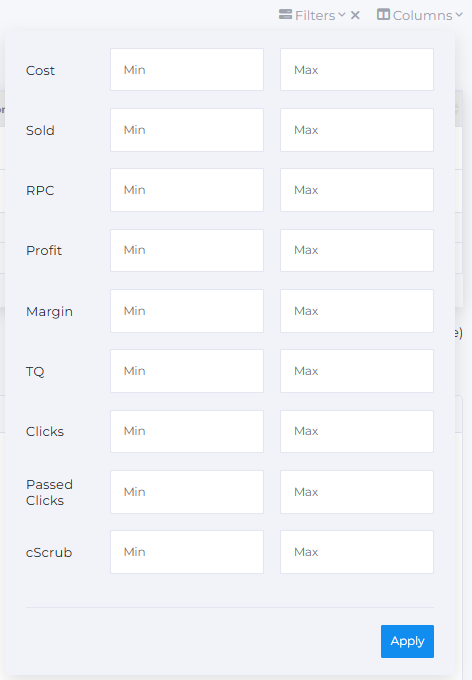
Using the Filters button on the right above the table, you can set sorting boundaries by metric values:
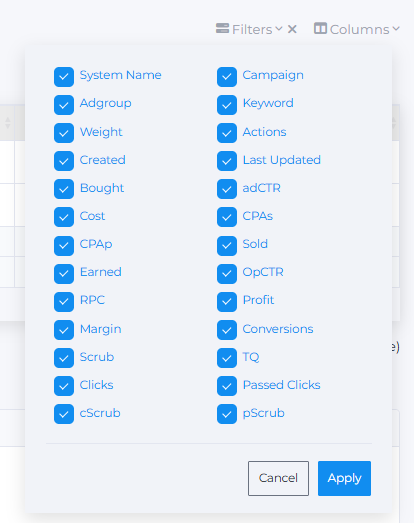
The Columns button lets you turn columns on or off in the table:
Report Content
The report table includes the following columns:
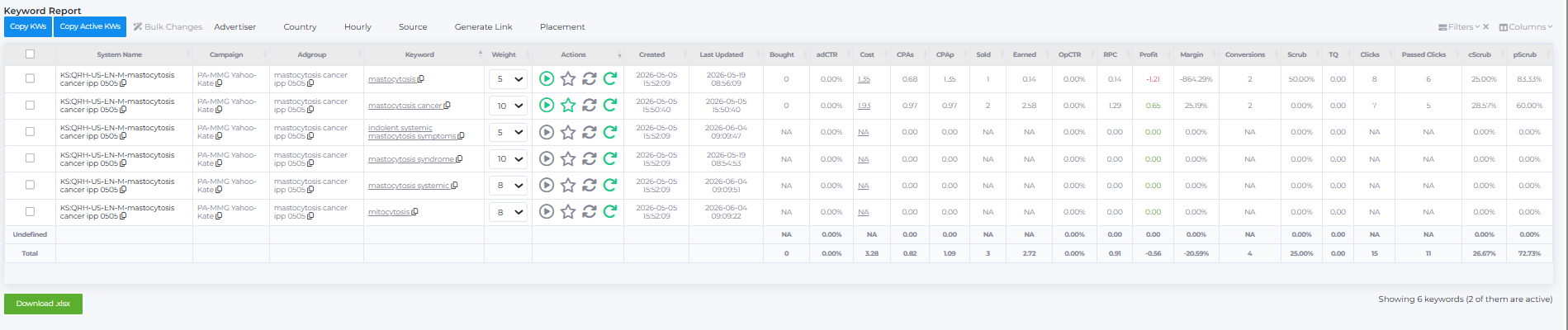
- System Name: campaign system name (same for all keywords in one campaign). Clicking it opens the AdGroup Daily Report for that campaign in a new tab. You can copy it via the copy icon.
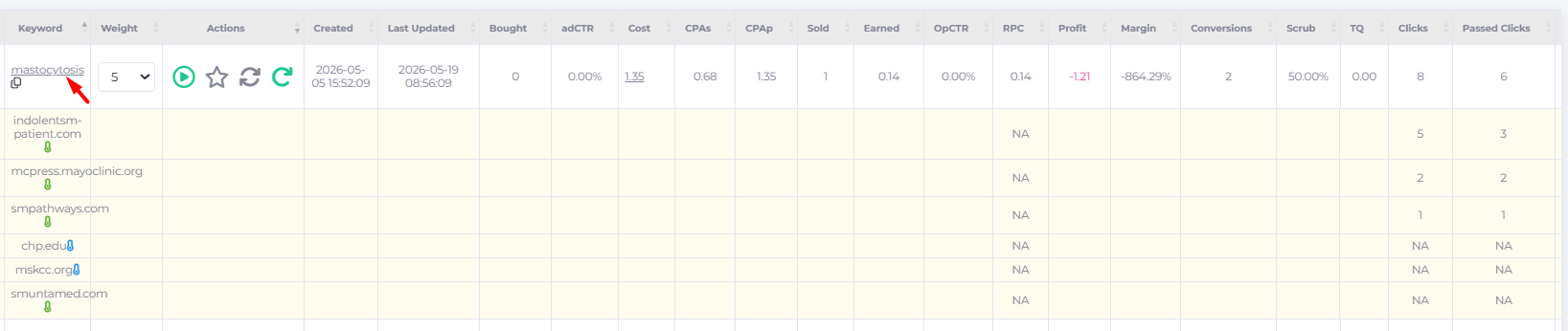
- Keyword: clicking on the keyword expands a list of advertisers with RPC shown where available (matches the RPC value for the advertiser in the AdGroup Advertiser Report). You can copy the keyword by clicking the copy icon.
- Weight: keyword weight value. Weight is the proportion of how the daily budget is distributed among keywords in the campaign. You can change it directly in the field. Values range from 1 to 10.

To decide the right weight for a keyword, consider how you want to split the daily budget between keywords.
Examples:
- Daily budget = $10, 2 keywords with weight 10 each. Since weights are equal, budget divides equally: $5 each.
- Daily budget = $10, 5 keywords with weight 10 each. Budget divides equally, $2 each.
- Daily budget = $10, 2 keywords; one with weight 10, the other weight 5. The cost share of the second keyword is calculated as:
- Each weight 10 keyword gets $5 ($10 / 2).
- Keyword 2 (weight 5) = $5 / 2 = $2.5.
- Proportionally: Keyword 2 = 5 * $5 / 10 = $2.5.
How to calculate desired weight during optimization? Example:

Instead of budget, consider Cost. Suppose keyword 2 is better, so we keep its weight at 10. Its Cost = $2.15. Keyword 1 has Cost = $1.38 but we want it to spend $0.8. What weight should we assign to keyword 1?
Calculate: $0.8 × 10 / $2.15 = 3.72, rounded to 4 (weights are whole numbers).
- Actions: buttons for keyword actions:
Status: keyword status (green = active, gray = paused/disabled).
Primary (star): marks main keyword (only one green star).
Replacement (two circular arrows): keyword replacement.
Rotation (one circular arrow): highlighted green if keyword is in rotation.
- Created: campaign creation date.
- Last Updated: date of last change.
- Bought: number of clicks bought on the keyword.
- adCTR: average daily CTR.
- Cost: daily spend on keyword. Click to see spend distribution for last 7 days:

- CPAs (Cost Per Action source): average CPA per day on the source.
CPAs = Cost / Conversions
- CPAp (Cost Per Action partner): average cost per target action on the partner’s side, including unpaid traffic (scrub).
CPAp = Cost / Sold
- Sold: total sold clicks on the keyword per day.
- Earned: total daily revenue for the keyword.
- OpCTR (On Page CTR): average CTR on the target site over the selected period.
opCTR = Sold / Bought x 100%
- RPC (Revenue Per Click): average revenue per sold click.
RPC = Earned / Sold
- Profit: net profit for the keyword.
Profit = Earned - Cost
- Margin: average margin percentage.
Margin = Profit / Earned x 100%
- Conversions: number of conversions during the period.
- Scrub: percentage of unpaid traffic removed by filters for invalid clicks or fraud.
Scrub = (1 - Sold / Conversions) х 100%
- TQ (Traffic Quality): traffic quality rating provided by the partner.
Additional Columns (disabled by default):
- Campaign: campaign prefixes.
- Adgroup: ad group name.
- Clicks: total actual ad clicks.
- Passed Clicks: clicks counted as real by the bot detector (excluding bots).
- cScrub: percentage of clicks blocked by bot detector.
сScrub = ((Clicks - Passed Clicks) / Clicks) х 100%
- pScrub: percentage of clicks counted by bot detector but not accepted by Yahoo.
pScrub = ((Passed Clicks - Sold) / Passed Clicks) х 100%
You can download the report as an Excel file via the Download.xlsx button below the table.
A keyword counter with active keywords count is shown at the bottom right:

Additional Features
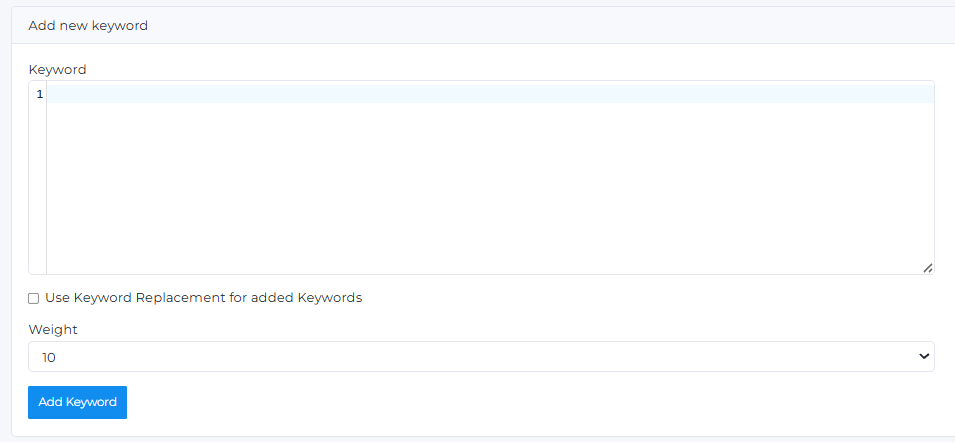
Below the table, you can add new keywords to the current campaign and assign weights.
To do this, enter the new keywords one per line in the Keyword field: