
Partner Campaign Searcher is a tool for searching all PCL (advertising campaigns) available in the traffic source.
Getting Started:
- Select the source and account.
- Enter one or more Campaign IDs.
- Click the Filter button. The search will display campaigns with any status except deleted.
Bulk Actions
In Partner Campaign Searcher, you can manage campaigns by pausing, starting, or adjusting budgets and bids.
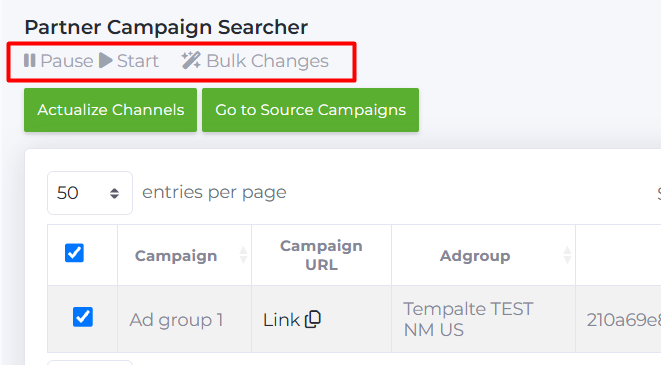
By selecting one or more campaigns in the list, you can apply bulk actions:
- Pause: pause the selected campaigns.
- Start: start the selected campaigns.
To change bid or budget parameters, select one or more campaigns and click Bulk Changes.
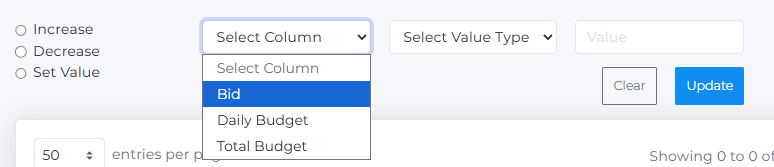
- Choose the action type: Increase, Decrease, or Set Value.
- Select the target parameter: Bid, Daily Budget, or Total Budget.
- Choose the input type: Percent or Amount.

4. Enter the value in the Value field and apply changes by clicking Update.
Action Buttons
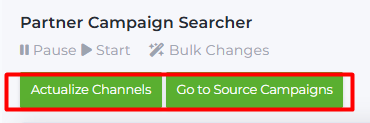
- Actualize Channels button updates the channel linked to the ad group if it has changed or is incorrect. For example, if the original channel was disconnected and the ad group was linked to a new channel, but the source data was not updated — this button will fix and synchronize the channel.
- Go to Source Campaigns button redirects to the Source Campaigns page, where you can view all ad groups created for the selected source and account.
Page Contents
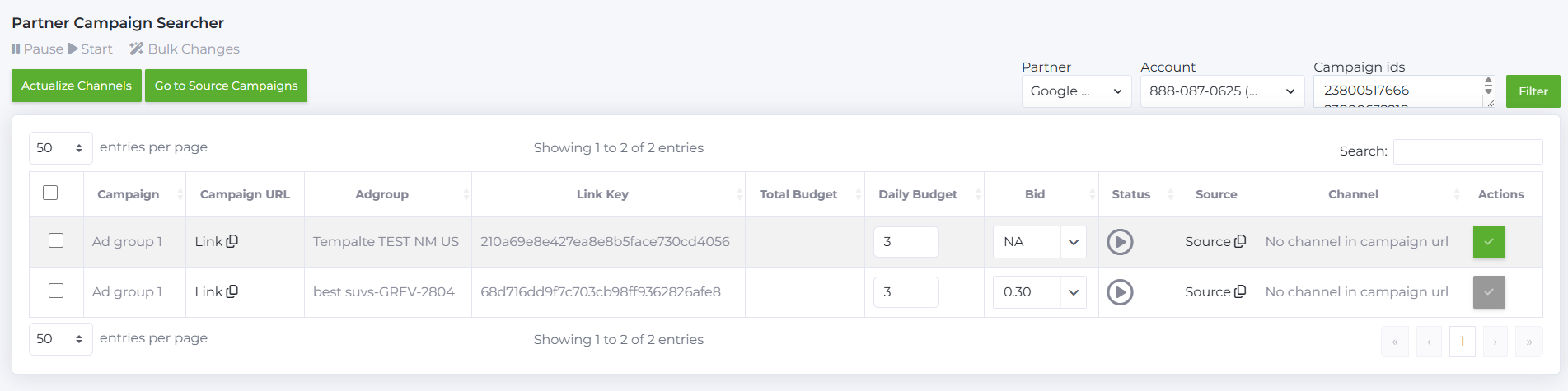
The Partner Campaign Searcher table includes the following columns:

- Campaign: the names of advertising campaigns set during upload.
- Campaign URL: a link to the campaign.
- Adgroup: the name of the ad group, usually including a description and the launch date.
- Link Key: a unique identifier for the ad group in string format.
- Total Budget: the overall campaign budget (not supported for Facebook in Google Ads).
- Daily Budget: the maximum daily budget for the campaign.
- Bid: the maximum bid amount set by the buyer for the campaign.
- Status: indicates campaign status (green — active, gray — inactive). Clicking this icon allows pausing or starting the campaign.
- Source: link to the traffic source.
- Channel: the channel linked to the campaign.
- If the channel differs, it is highlighted in red.
- If it matches the source and the ad group in Babkee, it is highlighted in green.
- If “no channel in campaign url” is shown, the ad group has no associated channel.
- Actions: allows setting the campaign template status. A black icon means the campaign is not a template; a green icon means it is a template.