Keyword Searcher Affrank is a tool that allows you to automatically check search results for the keywords you need and analyze the domains present in those results.
It is located at Tools → Keyword Searcher → Keyword Searcher Affrank.
The purpose of using Affrank is to select the most effective keywords, thereby increasing the success rate of campaigns. The system automatically checks the search results and shows:
- Whether search results exist for the keywords found. If there are no results for a keyword, it makes no sense to use it in campaigns.
- The number of quality advertisers present in the search results for each keyword.
Note: You can check up to 100 keywords per query in Keyword Searcher Affrank. Submitting more than 100 words creates heavy server load, and if you enter more than 100 keywords, the results will not be displayed and an error will occur.

To perform a check in Keyword Searcher Affrank, you need to enter the keywords manually (or upload a list via the Keyword File parameter in .docs or .txt format), and also select a partner, website, country, and device:
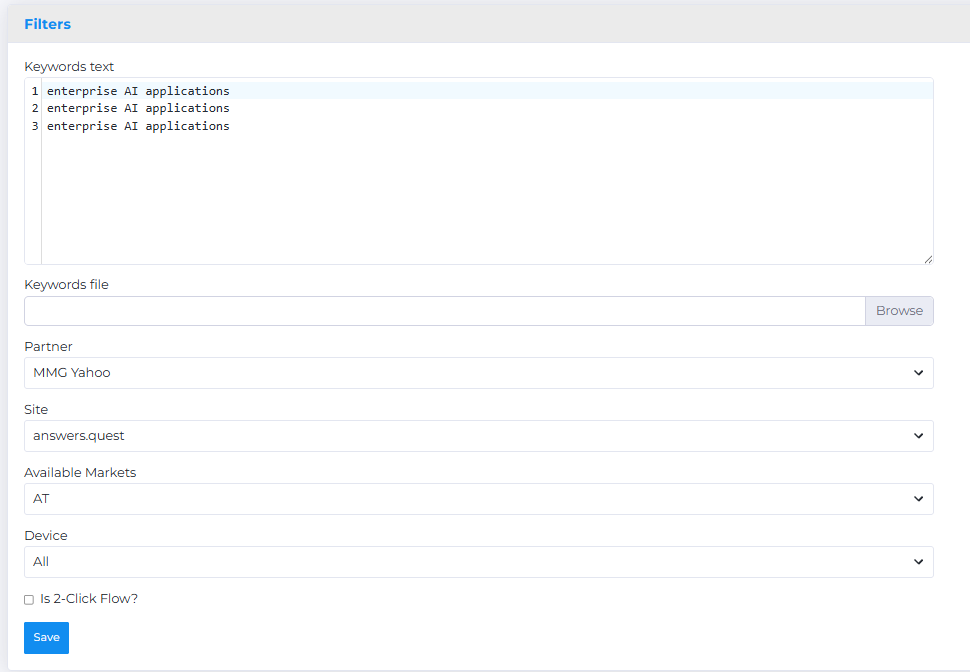
- Additional Info checkbox: needed to receive technical information.
- Is 2-Click Flow? checkbox: must be checked for partners operating under the 2-click model.
After filling in all fields, click Save and wait for the data to load.
The results appear in a table below the form:
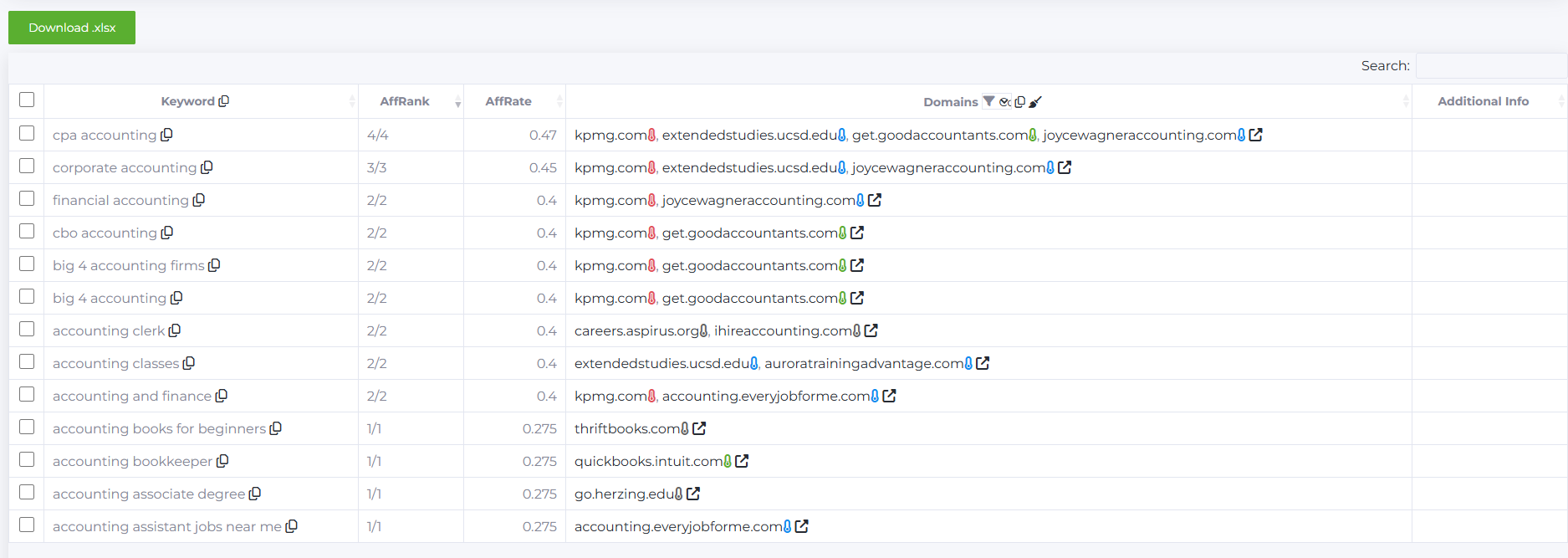
- Keyword: the keyword or list of keywords entered for the query. The copy icon next to each word allows you to copy it to the clipboard. If checkboxes are selected, clicking the copy icon will copy only the selected keywords. The copy icon next to the Keyword header copies the entire list of words from the table. The sort icon allows you to sort the keywords alphabetically.
The main parameter to look at in the results is AffRank. It consists of two numbers separated by a slash. The first number shows the count of "good" (non-arbitrage) domains in the results, out of the total number. The second number represents the total number of sites in the results. The maximum number of advertising blocks in the results is 5. Accordingly, the number of sites shown by the tool can range from 0 to 5.
- For example, if AffRank is 5/5, it means all five found domains are quality commercial domains.
- If it is 1/5, only one domain is good, and the other four are arbitrage.
- A 5/5 value does not guarantee success, but it indicates a higher likelihood.
Buyers generally try to use keywords with the highest possible AffRank (1/1, 2/2, 3/3, 4/4, 5/5). If such keywords are not available, they choose ones where the difference between the first and second numbers is small (e.g., 2/3, 3/4, 4/5). Much depends on which domains are worth working with and which are not. Rarely, campaigns with an AffRank of 0/1 worked positively — but these are exceptions.
- The AffRate parameter considers the positions of good, bad, and unknown advertisers in the results and calculates a numeric rating accordingly. Simply put, the higher the AffRate, the better the keyword is expected to perform.
- The Domains column shows the advertiser websites found in the keyword results. If a site is marked red, it means it has been assigned a negative status in our advertiser list inside the Babkee system, so buyers can immediately see that working with it is not recommended. You can check each suggested site by clicking on its domain to verify that the site is not an affiliate.
Clicking the link icon opens all domains at once, allowing you to check them consecutively. Opened domains are marked in blue. For this feature to work properly, make sure your browser supports bulk opening of links.
Note: if a domain (for example, walmart.com) appears red, this may mean the user has manually assigned it a "Bad" status. In this case, the red color is visible only to that user. If you see a domain marked red without personal settings, it means the domain is marked as "Arbitrage" at the system-wide level. If a domain appears green, it means the user has set it to "Good" status and assigned the advertiser type, which is visible only within their personal settings.

You can learn what the thermometer color next to the domain means here.
Next to the Domains column, there are three icons: filter, copy, and clear (broom):
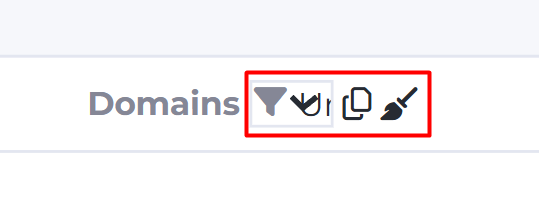
- The Filter icon next to the Domains header allows you to sort the found domains by uniqueness:
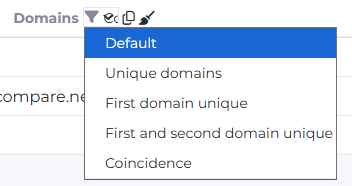
- Default: standard mode with no filter applied, showing all advertisers.
- Unique domains: filters to show only unique domains in the list, so each domain appears once.
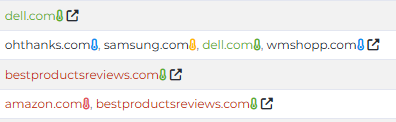
For example, keywords:
"laptop best buy, cheap laptop, asus laptop" are all related to the domain dell.com.
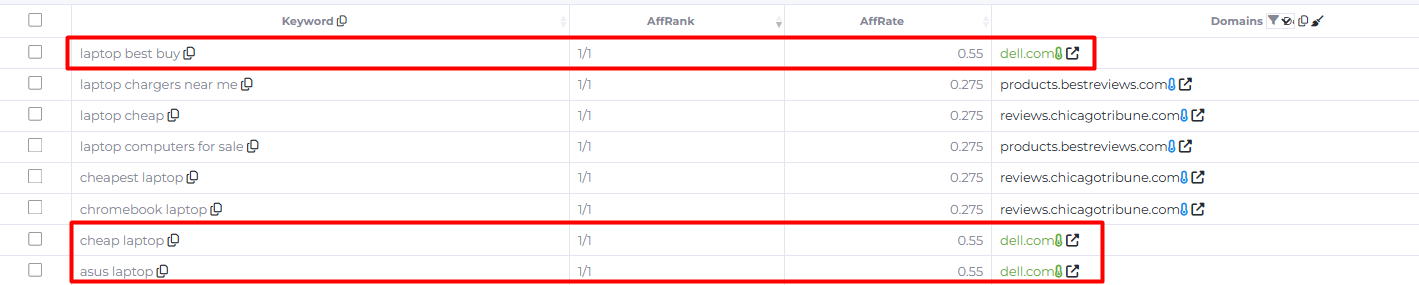
After applying the Unique domains filter, only the row with laptop best buy will remain since the others share the same domain.

- First domain unique: leaves only rows where the first domain in the results is unique.
- First and second: leaves only rows where both the first and second domains are unique.
- Conditions: filters domains that include at least a 3-letter part of the keyword.
For example, if the keyword is "booking"

applying the Conditions filter will keep domains containing the sequence "boo".

- The Copy icon next to the header allows you to copy the entire list of unique domains from the table for saving or further use.
- The Clear icon (broom) resets the highlighting of visited domains to the default display.
Additional Tips
- To find keywords with similar meaning, you can sort by clicking the Keyword column.
- To sort by the number of advertisers, click on the Affrank column — the more advertisers there are, the higher the competition, so the keywords may cost more (not guaranteed, but more likely).
- You can also download the data by exporting it in .xlsx format; to do this, click the Download .xlsx button.
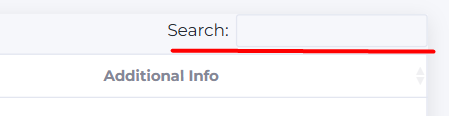
- The Search field supports searching for any value (keyword, domain, or AffRank value) across all table fields.