Keyword Searcher Suggestions is a tool that helps you find keyword ideas and analyze search results.
You can find it at Tools → Keyword Searcher → Keyword Searcher Suggestions.
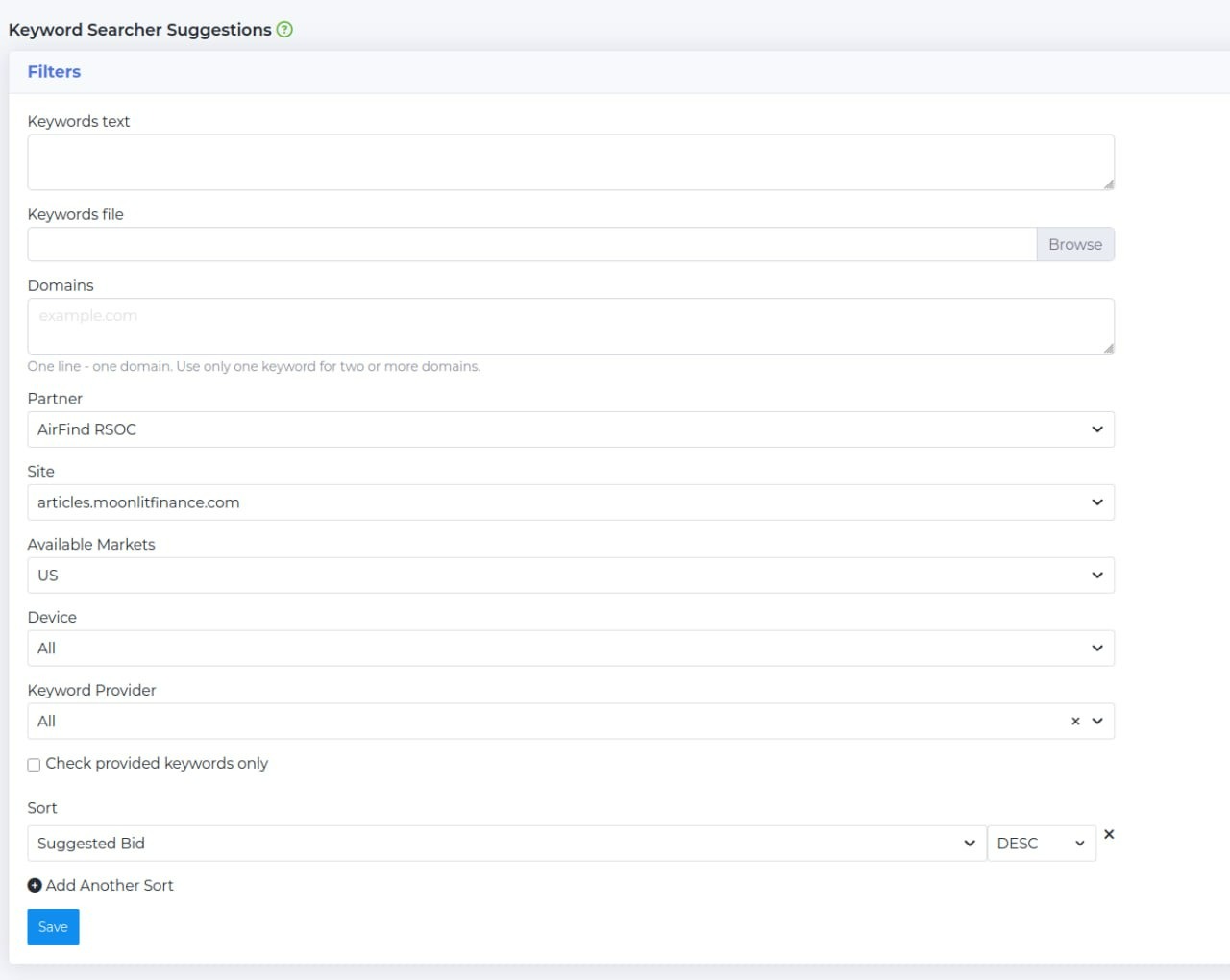
To get started, fill in the filters that the script will use to analyze and suggest suitable keywords, as well as to find domains based on your input queries.
Fields to fill out:
- Keywords text: Enter a keyword (or a list of keywords, one per line) to check search results.
- Keywords file: Attach a text file with a list of keywords (.docs, .txt formats supported).
- Domains: Here you can specify a domain or a list of domains (one per line) to check search results.
- Partner: Choose a partner from the dropdown list. For quick search, start typing the name in the Search field within the list.
- Site: Select the site where the buyer plans to drive traffic. For quick search, start typing the name in the Search field.
- Available Markets: Select the country (geo) to which the traffic will be directed. For quick search, you can start typing the name in the Search field. All countries are shown with abbreviations.
- Device: Select the devices for which keywords will be selected (desktop, mobile devices, etc.).
- Keyword Provider: Choose the provider for keyword suggestions: Google Ads, Microsoft Advertising, or All.
- Sort: Allows sorting results by your chosen parameter: Average Monthly Search, Competition, or Suggested Bid. For each parameter, you can select ASC (ascending — from lowest to highest) or DESC (descending — from highest to lowest).
By default, if nothing is selected, sorting is performed by Suggested Bid in descending order (DESC).
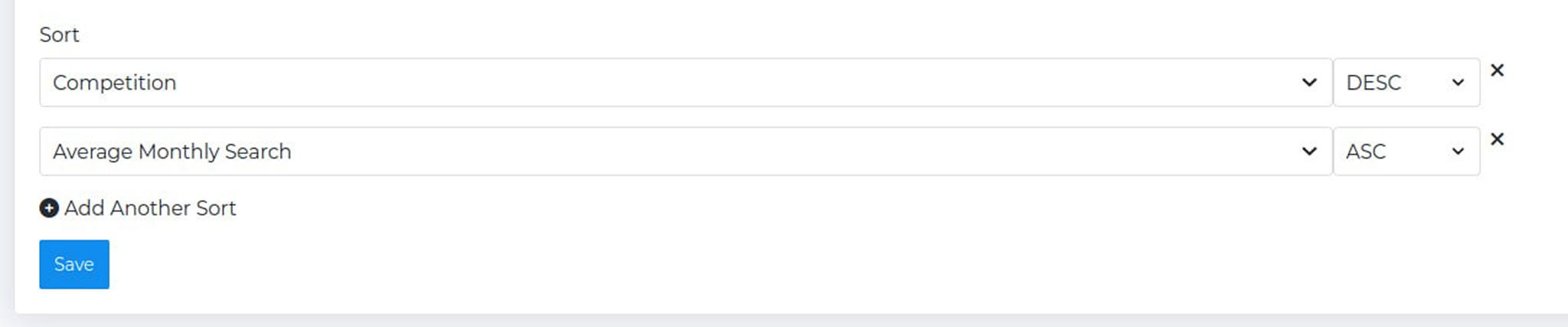
If multiple parameters are selected (for example, Competition-DESC and Average Monthly Search-ASC), results are first sorted by Competition in descending order, and then within those results, sorted by Average Monthly Search in ascending order.
Checkbox "Check Provided Keywords Only": Check this if you only want to analyze the results for the keywords you entered (without finding new ones).
After entering all the data, click Save and wait for the data to finish loading. The search may take some time, depending on the amount of input data. The tool will analyze the keywords, search the selected advertising systems, and provide its suggestions (similar keywords and phrases):
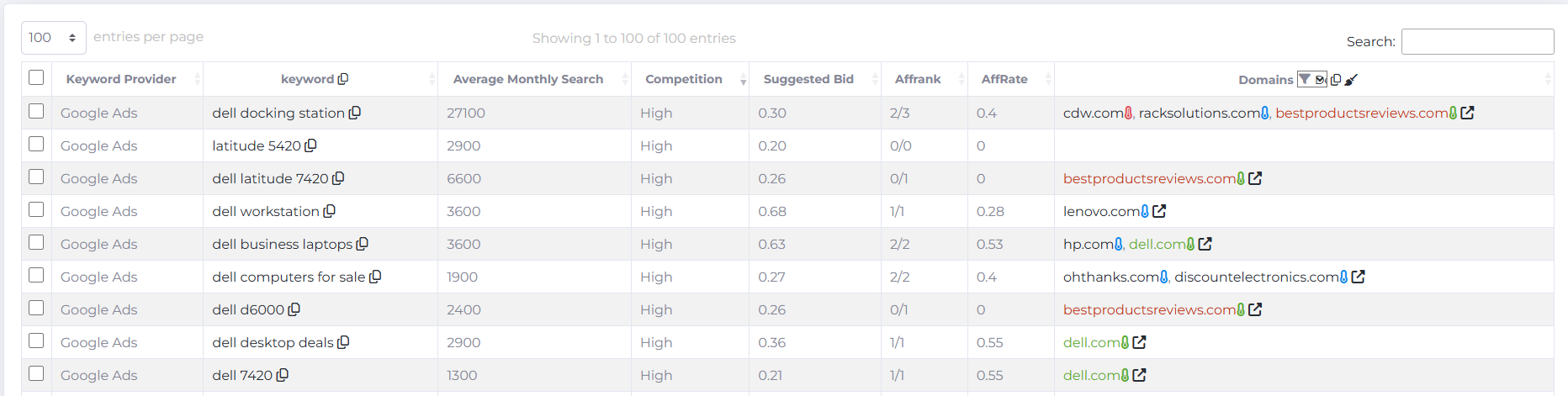
The table of results includes the following columns:
Keyword Provider: The source where the tool searches for similar keywords: Google Ads or Microsoft Advertising. The sorting icon allows you to sort providers alphabetically.
Keyword: The keywords or phrases found by the tool. The copy icon next to each keyword allows you to copy it to clipboard. The copy icon next to the Keyword column header allows you to copy the whole list from the table.
Average Monthly Search: The average number of monthly searches for each keyword. The sorting icon allows you to sort this indicator in ascending or descending order.
Competition: Indicates how competitive the keyword is. Calculated in the range from 0 to 100. The higher the number, the more competitive the keyword. For convenience, levels are shown:
- Low (1–33): low competition
- Medium (34–66): medium competition
- High (67–100): high competition
- NA (null): not enough data or not calculated by the provider. The sorting icon allows you to sort this indicator in ascending or descending order.
Suggested Bid: The recommended bid for this keyword. Cost data comes from Google Ads and Microsoft Advertising. The sorting icon allows sorting by ascending or descending values.
AffRank: The number of advertisers appearing in the search results. The sorting icon allows you to sort AffRank by ascending or descending value, from the highest number of quality sites to the lowest, or vice versa.
Domains: Domains found by the tool based on your input keywords. Copy, sort, and select functionalities in the table work the same as in the Keyword Searcher Affrank tool.
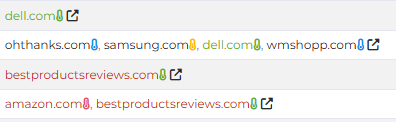
What each thermometer color next to a domain means can be found here.
In Search field above the table, you can search for any value (keyword, domain, or AffRank). Search is supported for all table fields.
To select the best keyword options, pay close attention to your input parameters. Search results are unique for each keyword, partner, site, and device. Results also change throughout the day. The data found is cached in the system for an hour.
Keyword Searcher Suggestions helps to automate the process of selecting and verifying keywords and domains:
- Using one or more found keywords, you can generate a large number of alternatives for your ad campaigns;
- Check search results for new words and phrases using the AffRank parameter. If a significant number of affiliate sites is present, the profitability of the campaign may decrease due to arbitrageurs lowering bids, and you may want to choose other keywords.
Since the tool analyzes a large amount of third-party data, generating the list takes longer than in Keyword Searcher Affrank.
If you need to find even more keywords on a topic, choose Keyword Searcher in the tool list. In the Keyword Suggestions table, the first 100 results for your query are shown. In the Keyword Searcher tool, all available search results from Google Ads and Microsoft Advertising are displayed.
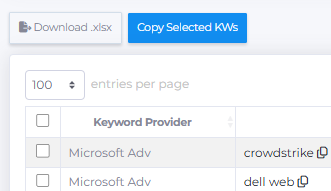
You can download the data by exporting it in .xlsx format. When you click Download .xlsx, the entire query is exported. If you select specific keywords, only those selected keywords will be exported. To copy the selected keywords, click Copy Selected KWs button.