
The tool you are referring to combines the functionalities of Keyword Searcher Affrank and Keyword Searcher Suggestions, including additional parameters.
At the top of the section, there are filters through which the script analyzes and selects suitable keywords, and finds domains based on input requests. These filters allow users to refine their search and obtain more targeted results that match their specific needs or criteria. Users can input various parameters to guide the search and analysis process, ensuring that the returned keywords and domains are as relevant as possible to their intended use, such as for optimizing ad campaigns or for identifying competitive affiliate sites in search engine results.
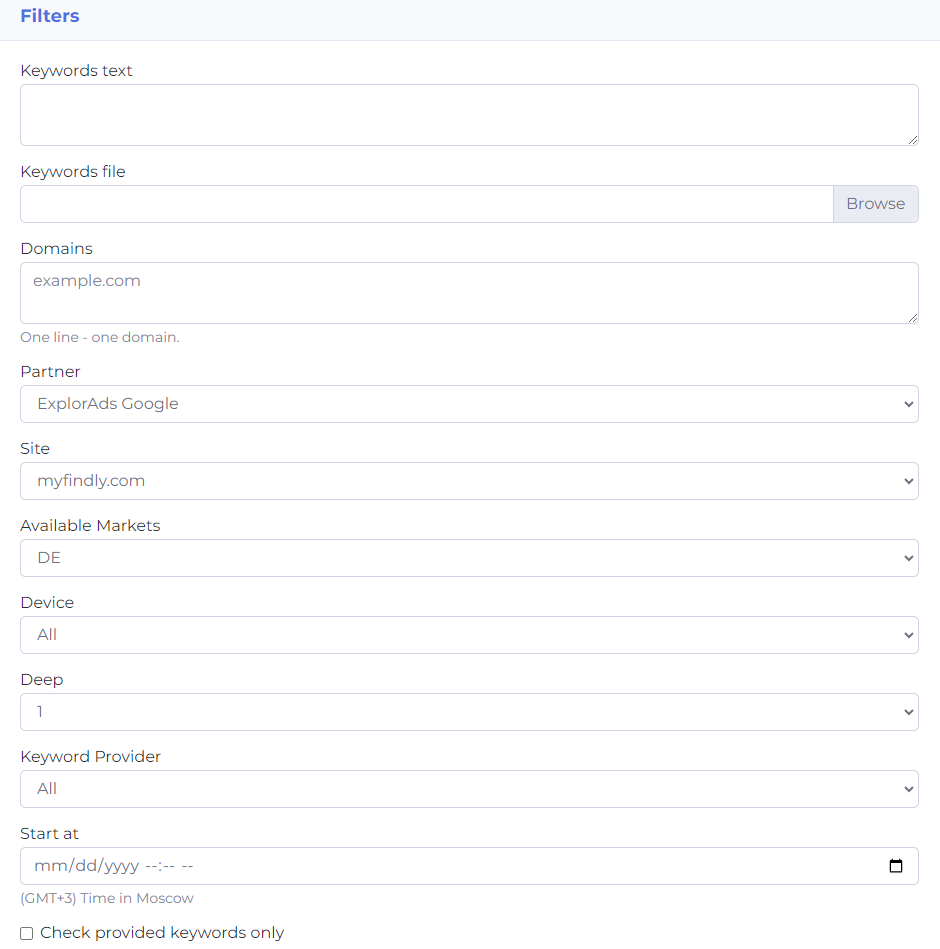
Fields to fill in:
Keywords text – enter a keyword or list of keywords to check the search results, one per line.
Keywords file – allows you to attach a text file (format .docs, .txt?) with a list of keywords.
Domains - specify a domain or a list of domains to check the search output, listed in a column.
Partner dropdown list – selection of a partner from the list.
Site dropdown list – selection of the site to which the buyer plans to direct traffic.
Available Markets dropdown list – selection of the country (geo) to which the traffic will be directed.
Device dropdown list – selection of devices for which the keyword output will be tailored (desktop, mobile devices, etc.).
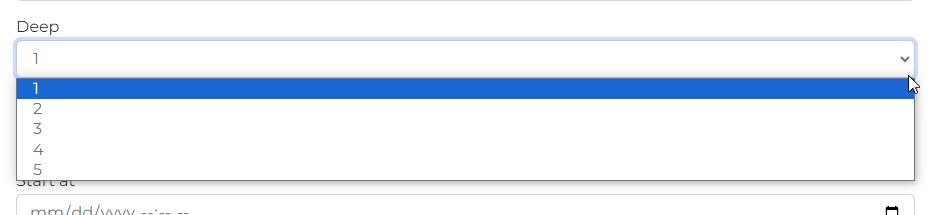
Deep dropdown list – refers to the search depth. It allows you to choose the devices for which the keyword output will be tailored (desktop, mobile devices, etc.). Depth 1 (level 1) means that the tool will check through AffRank all the results found for the entered word in Google Ads or Microsoft Adv. Depth 2 means that a re-check will be performed on the found words.
For example, if 1,000 words are found for a keyword at depth 1, and you select depth 2, the tool will check the output not only for these words but will also perform a search check for each of the 1,000 found words and compile an AffRank for them. Thus, the greater the search depth, the larger the volume of words the Keyword Searcher will process. This feature helps to extensively research and analyze keywords to develop a more comprehensive strategy for SEO or advertising campaigns.
Keyword Provider drop-down list – choose the source for selecting keywords: Google Ads or Microsoft Advertising.
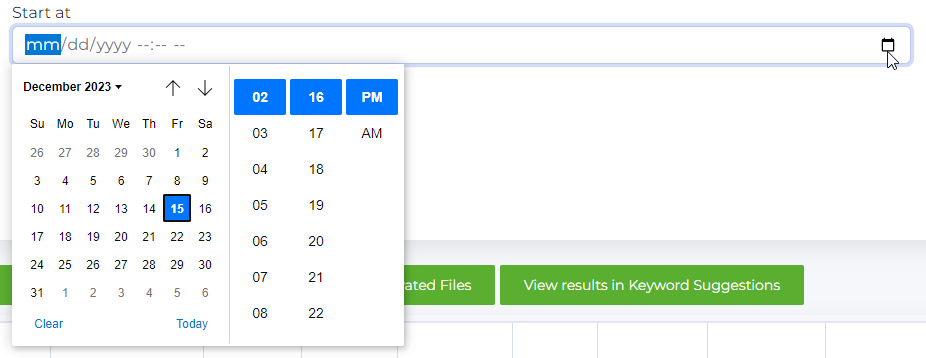
Start at calendar is a scheduling feature. By selecting an arbitrary future date and time, you can set up a delayed start for the tool's operation. This allows you to plan and initiate the tool's processes at a specific moment that suits your workflow or strategy, giving you greater control over when the analysis or keyword research is conducted.
Check Provided Keywords Only checkbox – mark this option if you need to check the output only for the entered words, without selecting new ones.
Check AffRank & Advertisers checkbox – mark with a check if you need to check AffRank and domains for the found words. Without this checkmark, the AffRank and Domains columns in the table will be empty.
After entering all the data, click the Save button and wait for the data to finish loading. The output field will display a list of keywords and sites according to the corresponding queries. The search may take some time, depending on the amount of input data and the depth of the search. If you need to process a large amount of data, you can use a delayed start, for example, to start generating the table by the morning of the next day.
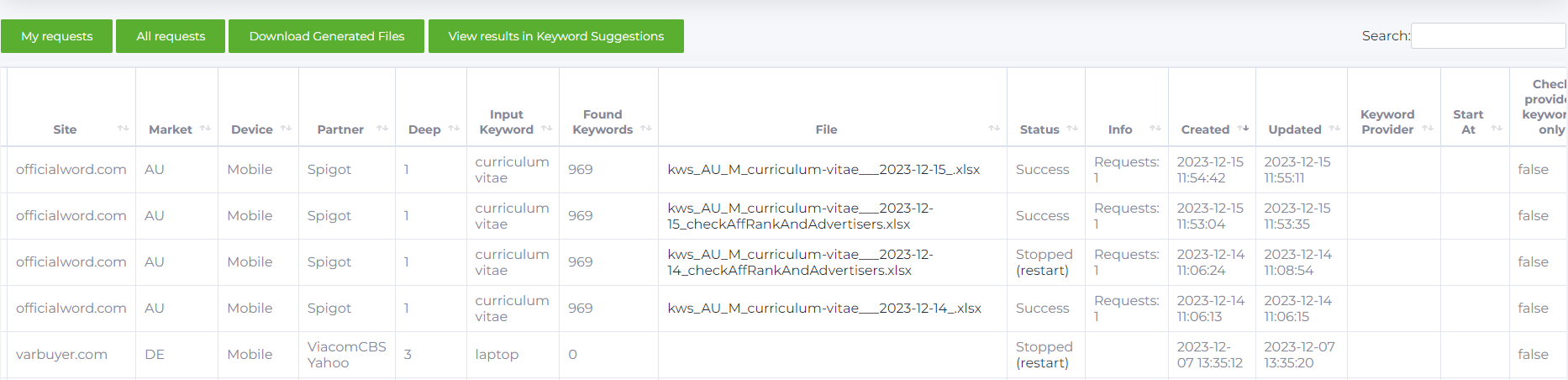
The output in Keyword Searcher consists of the following columns:
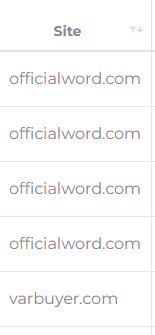
Site - the website to which traffic is planned to be directed and for which the search results are checked. The sorting icon allows you to sort the domains alphabetically.
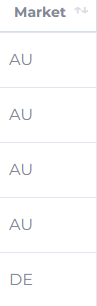
Market - the country (geo) for which the search results are being checked. The sorting icon allows you to sort countries alphabetically.
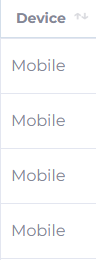
Device – the devices for which the keyword search results are tailored (desktop, mobile devices, etc.). The sorting icon allows you to sort devices alphabetically.
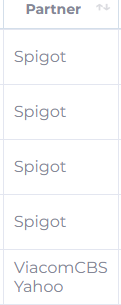
Partner – the partner for whom the search results are being compiled. The sorting icon allows you to sort partner names alphabetically.
Deep - search depth. The sorting icon allows you to sort the search depth in ascending or descending order.
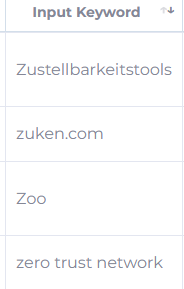
Input Keyword - the keyword that was used to initiate the search. The sorting icon allows you to sort the keywords alphabetically.
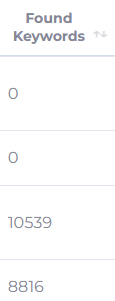
Found Keywords - the number of found keywords. The sorting icon allows you to sort the number of selected words in ascending or descending order.
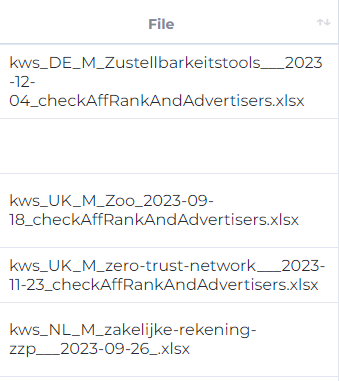
File – contains a link to the file with the selected keywords and (or) AffRank parameters and domains. The sorting icon allows you to sort the file names alphabetically.
Status – displays the search request status. Types of statuses available:
Success - Successful
Fail - Completed with error
Stopped - request stopped
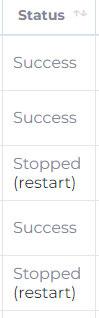
Stopped and Failed search requests can be restarted by pressing restart (resume). The sorting icon allows you to sort the list of statuses alphabetically.
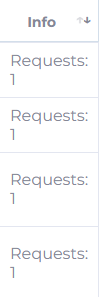
Info - information on the number of requests to the Keyword Provider.
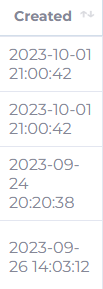
Created - shows the date of the request's creation. The sorting icon allows you to sort the requests by date, from oldest to newest, and vice versa.
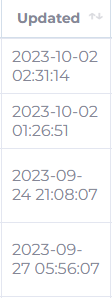
Updated - displays the date the request was updated. The sorting icon allows you to sort the search update requests by date, from oldest to newest, and vice versa.
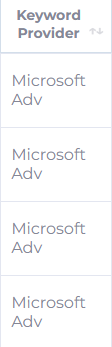
Keyword Provider - contains information about the source of the keywords (Google Ads or Microsoft Advertising).
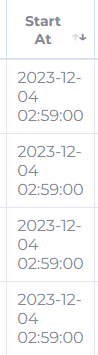
Start at - the date the request was started, in the case of setting a delayed start. The sorting icon allows you to sort the search requests by date, from oldest to newest, and vice versa. Time is set to UTC-0.
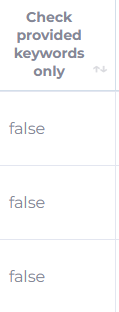
Check provided keywords only - if the option to check only the specified words (Check provided keywords only) was selected during the request, the field contains the value True. If this option was not selected, the row contains the value False.
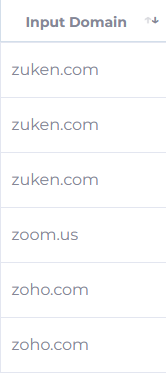
Input domain - contains a list of domains entered in the query field. The sorting icon allows you to sort the list of domains alphabetically.
In the search field, you can search for any value (keyword, domain, or AffRank values). The search is supported for all table fields.
Above the search results table, you can find filters for interacting with the data:

My requests (Мои запросы) - displays requests created by the buyer.
All requests (Все запросы) - displays all created requests.
Download Generated Files (Скачать подготовленные файлы) - allows you to download one or several files. To do this, you need to check the box next to the desired row in the table.
View results in Keyword Suggestions (Просмотреть результаты в Keyword Suggestions) - allows you to view search results without downloading, in the interface of the Keyword Suggestions tool.

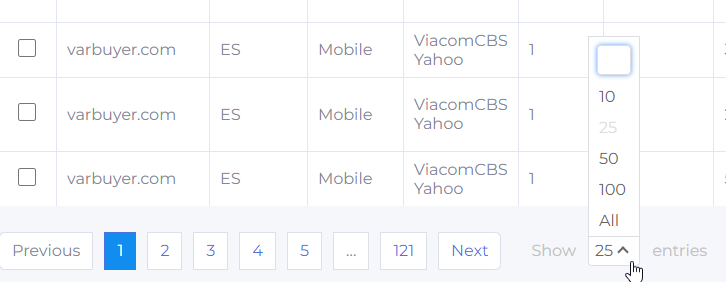
At the bottom of the page, you can configure the desired number of items per page (10, 25, 50, 100, or all).
Thus, the Keyword Searcher tool combines the functionality of Keyword AffRank and Keyword Suggestions and contains the largest number of metrics for working with search results. However, data processing, especially when dealing with a large number of input words, takes a significant amount of time. For optimal use and time saving, you can use a delayed start to prepare search results according to specified parameters by a certain time (for example, by the start of the working day).