
Ad Group Generator tools allow a buyer to quickly create ad groups and links for uploading into advertising campaigns.
In Babkee you can generate links with the following tools: Ad Group Form Generator and Ad Group File Generator. You can launch them in the dropdown menu Management - Adgroups.

Adgroup Form Generator
This tool will help you to create ad groups and links within the system interface by filtering the necessary parameters and entering keywords:

You can set up your generator with the following filters:
Partner - A list of partners with whom we collaborate. Please select where your traffic will be directed.

Site - A list of targeting websites. Please select the website where your traffic will be directed.

Traffic Source - A list of sources (source partners), where links are displayed. Please select the source of your traffic.

Market - A list of targeting countries where ads are displayed. Please select the targeting country.

Device - A list of targeting devices. Please select the device where traffic will be targeted.

Campaign - List of the team's advertising campaigns. They contain the names of campaign folders with ad group list (available in the Campaign list menu). By default, the last selected folder appears first in the list. You can also create a new campaign folder by clicking the green + button.

These settings may already be sufficient for ad group setup. You just need to enter a list of keywords in the field below and click Generate AdGroups. Additional options for customization are also available.

The Check keywords for uniqueness within the campaign checkbox verifies the uniqueness of keywords entered within one selected campaign. If the keywords had been used previously, the script will return an error.
The Create preset button allows you to create a template with selected filters for quick access. If you frequently upload campaigns to the same partners with the same parameters, you can create several presets and use them.
Advanced options
The tool also provides additional (optional) settings. It is recommended to consult with your team lead/senior colleague before making changes in these fields.
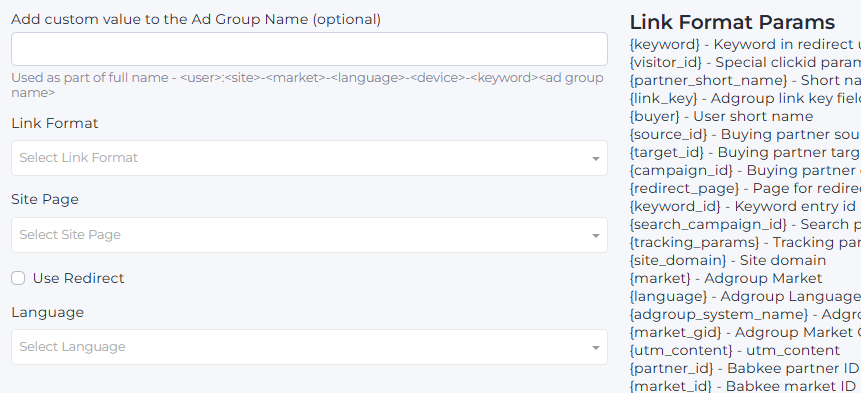
In Add custom value to the Ad Group Name field you can add text to the ad group name. For convenience and campaign tracking, buyers usually add the campaign creation date or upload date.
Babkee uses the following format for ad group name (system name):
Name (buyer's name): Site (website)-Market-Language-Device-Keyword-Custom value (optional parameters).
System name example: OK:TMD-UK-EN-M-caribbean cruise 1808
Link Format dropdown list specifies the default link format for the selected combination of partner, source, and site (there may be one or several link formats for one partner, and it may contain the name of the partner and source).
Site Page dropdown list specifies the ad landing page. Landing websites have different pages (top 5, top 5s, etc.). By default, the system inserts the necessary page format depending on the selected parameters.
With Use Redirect checkbox you can enable redirect to an intermediate page. If the checkbox is not checked, the final link will lead directly to the partner's page. Redirect can be enabled for third-party partners when the buyer wants to use keyword rotation (please note that Google Ads does not support redirect).
Redirect is enabled automatically for PropellerAds and RollerAds.
In Keyword list field you need to enter keywords in a column. The output will be the same number of links as the number of keywords entered. Keywords should not be listed in a single line separated by commas.

After clicking the Generate AdGroups button, you will get an adgroup list with the following fields:
Keyword – System name – Final URL (the link you need to upload)
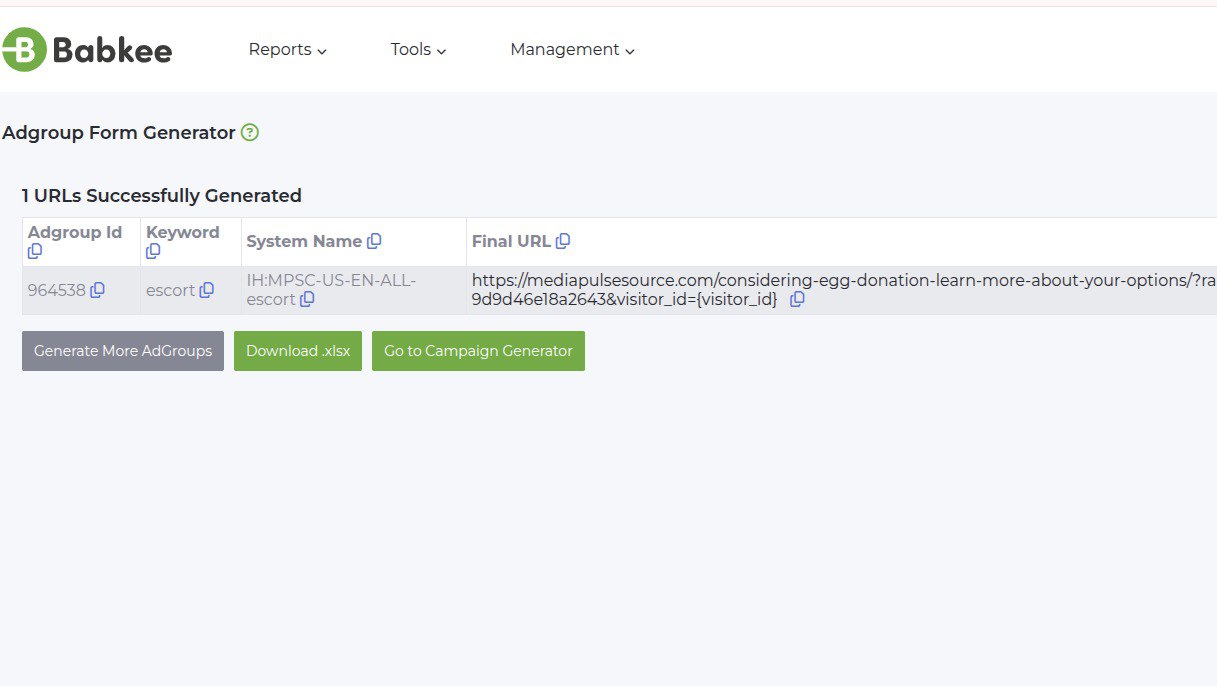
With Download .xlsx button you can download all data to an .xlsx file, and by clicking Generate More AdGroups, you return to the previous step of the generator to enter parameters.
Go to Campaign Generator button opens Campaign Generator New Request form with the filters (Source, Ad Format, Upload Type) and the System Name automatically filled in.
After generating the links, the new ad groups will be saved for the buyer in the Management - Campaigns - Campaign List menu. You can edit ad group settings by clicking the Edit button. You can copy the landing page link by clicking Generate Link. There you can also find a link to Keywords list.

To add words and enable rotation, click on keywords and on the keyword list page, click Create new.

Please note:
1 Rotation works with 1-click partners (Yahoo, Bing feeds) only; rotation does not work with 2-click partners (Google RSOC feeds).
2 When working with Yahoo sites (TMD, WWU, etc.), you do not need to enable redirects for rotation.
3 When working with third-party partners (3rd party partners), you need to enable redirects for rotation.