
Adgroup Advertiser Report is a detailed report on advertisers for a specific campaign.
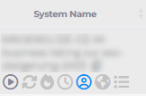
To access the report, you need to click on the person icon in System Name column of AdGroup Report.
Adgroup Advertiser Report is available only for MMG Yahoo, Airfind Yahoo, Spigot Yahoo partners.

The report contains the following columns:
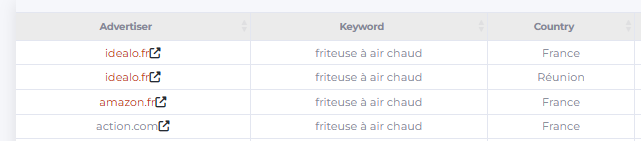
Advertiser: A complete list of all advertisers that appeared in the results. For each advertiser, data is shown broken down by keyword, country, and device type.
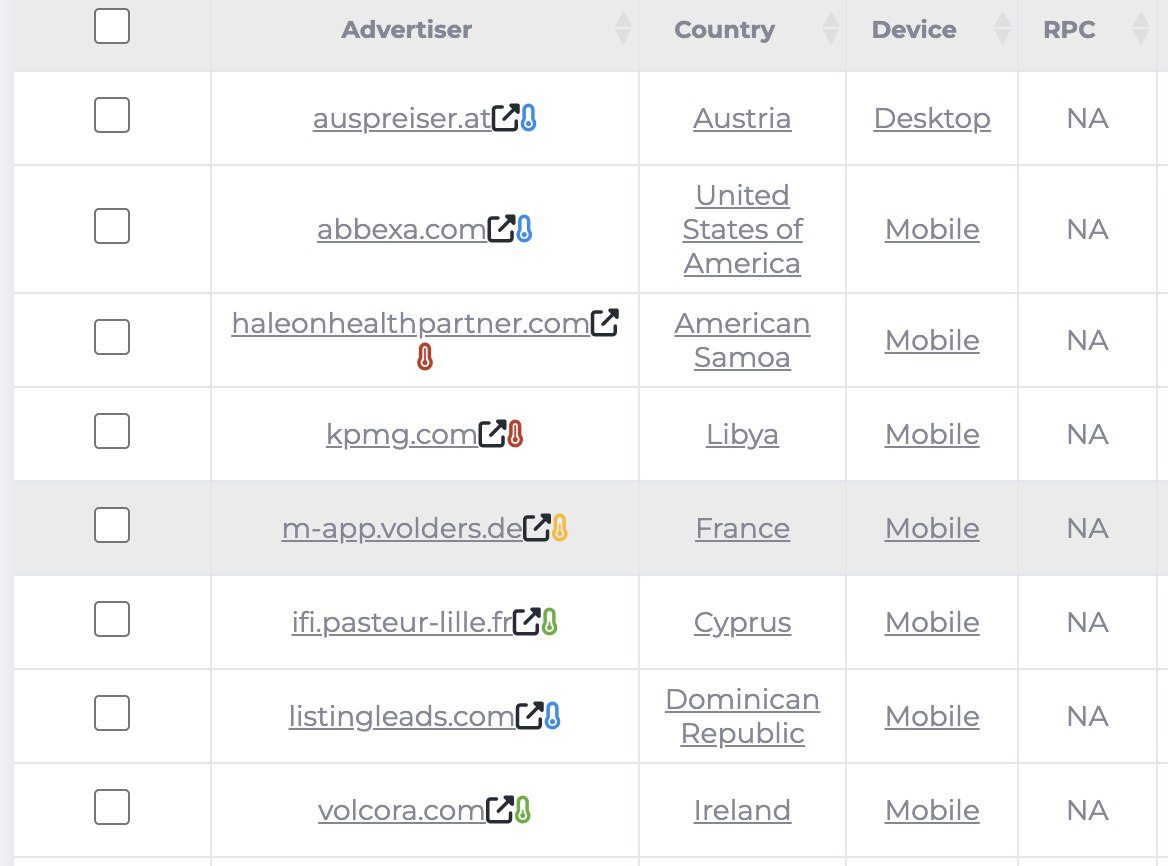
Color highlighting is applied: if an advertiser was marked by the user as Bad or has Arbitrage status, it will be shown in red. If an advertiser was marked as Good, it will be shown in green.
The thermometer icon indicates how overheated an advertiser is within our system, based on Passed Clicks across the system for that advertiser over the last 3 days (including today).
- Red — high competition, this advertiser is getting too much traffic (more than 400 passed clicks).
- Yellow — traffic is slightly above normal (from 200 to 399 passed clicks).
- Green — optimal load (from 40 to 199 passed clicks).
- Blue — very low competition, the advertiser is getting almost no traffic (from 1 to 39 passed clicks)
- Gray — no traffic to the advertiser, (0 passed clicks)
Color illumination is also used:
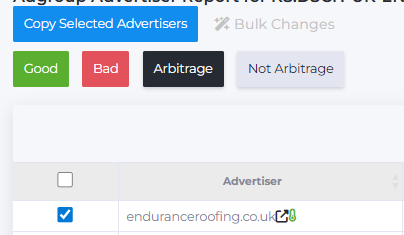
- If the advertiser is marked as Bad by the user or has Arbitration status, it is highlighted in red. If it is marked as Good — it is green.
- To change the advertiser type, select the desired domain, and then use the checkbox and Bulk Changes button to select the appropriate status.
- Good and Bad labels are applied only within the user. If the advertiser is marked as Arbitrage, the domain is colored for all users.
- Copy Selected Advertisers button has been added to copy advertisers.
Keyword: The keyword for the corresponding ad group.
Country: The country where the keyword, advertiser, and selected device were detected.
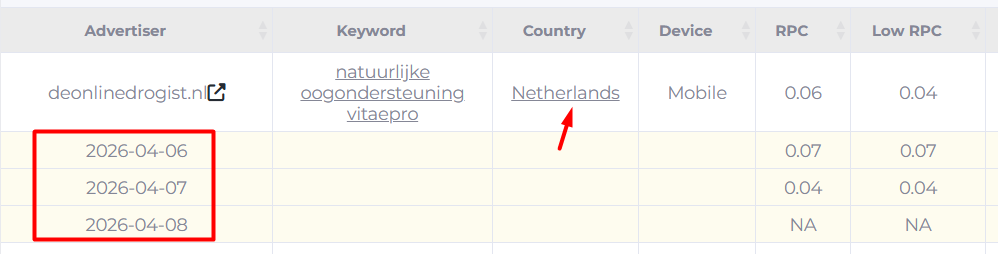
- When clicking on "Country" of the selected advertiser, a dropdown list by dates for the selected period is displayed.
Device: The type of device (mobile, desktop, tablet) where the advertiser-keyword-country combination was recorded.
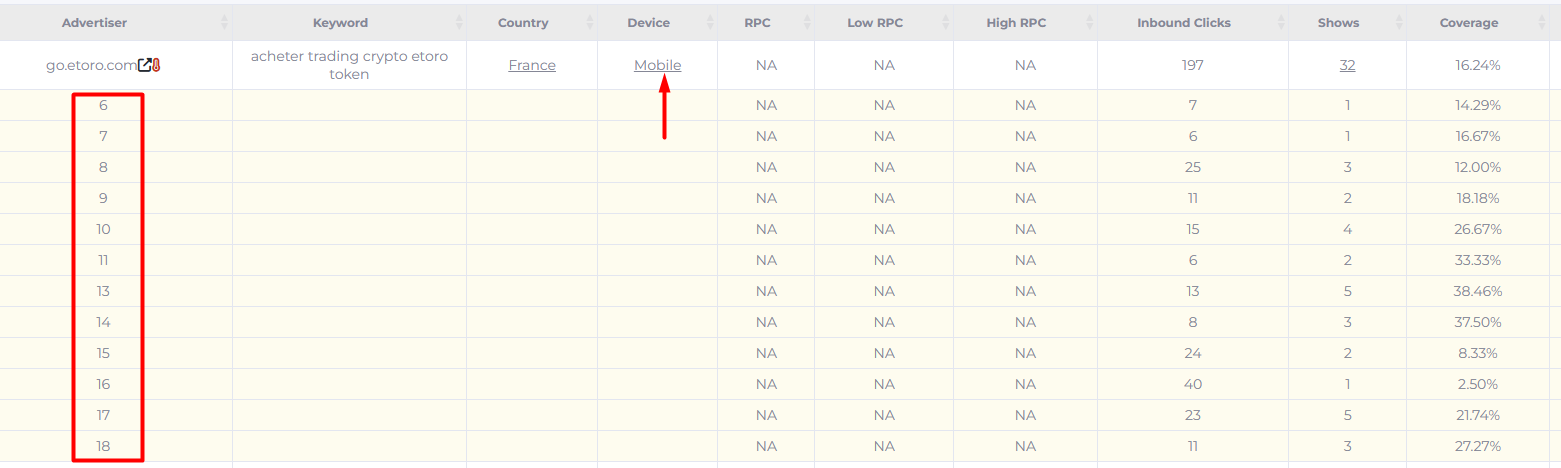
- When clicking on "Device" of the selected advertiser, a dropdown list by hours is displayed.
RPC: The weighted average RPC value for the specific combination "advertiser-keyword-country-device". This value will NOT match the daily or hourly reports, as only the calculated RPC for this combination is shown. Currently, an approximate value is displayed.
If the column shows NA, it means the data could not be split correctly. In this case, for the selected time period, more realistic values are given by:
- Low RPC: The lowest RPC value in the period
- High RPC: The highest RPC value in the period
Prediction RPC: The predicted RPC range calculated by our algorithm based on the available data.
‼️ Important note: The values in the RPC, Low RPC, and High RPC columns do not in any way affect the value in the Prediction RPC column. In the Prediction RPC column, we show the RPC you could potentially achieve. The RPC column, on the other hand, shows the actual RPC you have received.
Inbound Clicks values can be the same for different advertisers. This happens because if several advertisers (for example, 4) are shown at the same time for the same keyword, country, and device, all of them will have the same number of Inbound Clicks.
For example, every time the combination "London drainage evaluation and inspection experts – United Kingdom – Mobile" appeared with these advertisers, each received the same Inbound Clicks count (186 clicks):

Shows: The number of times an advertiser appeared for the combination "keyword-country-device".
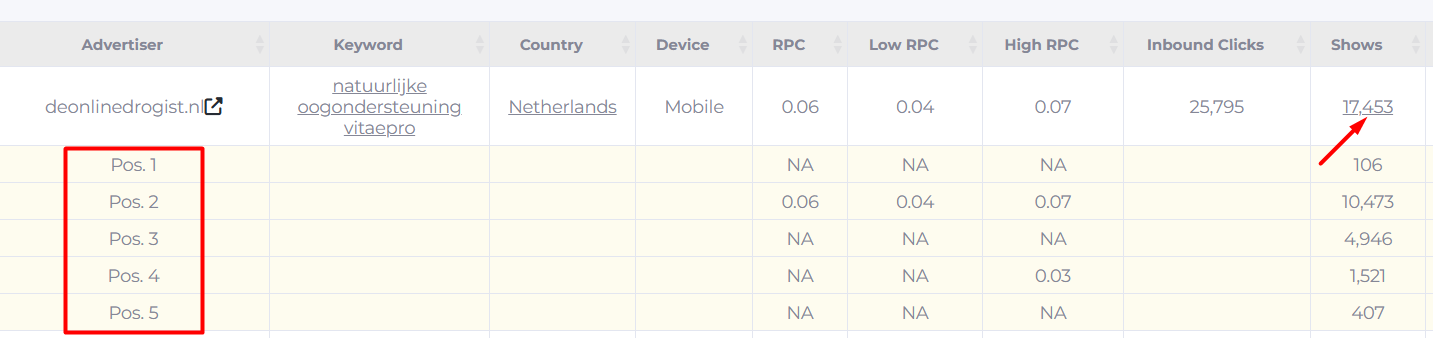
- When clicking on "Shows" of the selected advertiser, a dropdown list with the advertiser's positions and the number of clicks for each of these positions is displayed.
Coverage: The percentage of times the advertiser showed up in relation to Inbound Clicks. This reflects the advertiser’s share of appearances for this combination. Calculated as: Coverage = Shows / Inbound Clicks
Clicks – the actual number of clicks on the advertiser.
Passed Clicks: The number of actual clicks for this advertiser that passed our bot detector check.
In the Search field, you can search by keyword, advertiser, or country. For keyword search, you can enter just part of the word and the system will find all matches. For advertiser or country searches, enter the exact and correct name.
Advertiser statistics will be stored for an unlimited period.