
To get started, select the traffic source (Source), then specify Ad Format and Upload Type filters.
If you created an ad group using Adgroup Form Generator and clicked Go to Campaign Generator button, all filters will be filled in automatically.
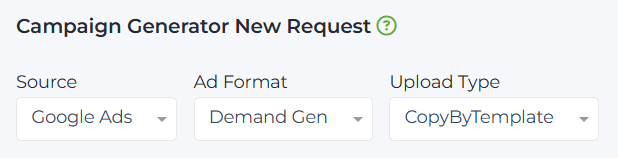
After that, Main Form section will appear, containing the following fields to fill out:
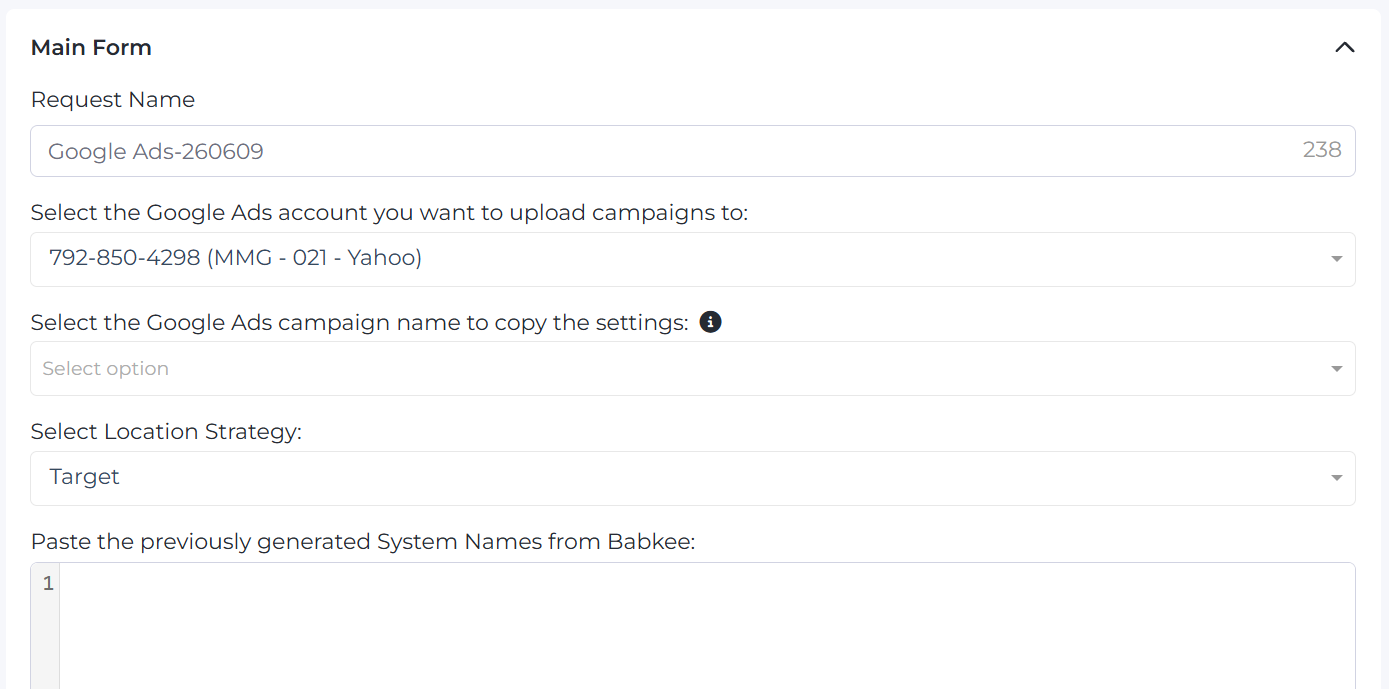
Request Name: this field is filled in automatically by default with a combination of (Source + Date). If necessary, you can edit it or enter a custom name.
In Select the Google Ads account you want to upload campaigns to select the account number where you need to upload new ad groups. The system saves the last selected setting.

If the selected template has a bidding strategy, a ‘New Bid’ field will appear. You can enter a new bid value in this field. If the value is not entered, the system wll import the bid value from the template.

The Select the Google Ads campaign name to copy the settings contains the list of template campaigns.

The list of template campaigns can be found in Management -> Source Campaign -> Source Campaigns.
You can set the template campaign via Bulk Changes.
If template campaign is not found, you can get it via: Tools -> Partner Campaigns Searcher .
Fill out the form and click Filter. The system would process the request and your template will be available on the Source Campaigns page.
Note: If you were unable to add the Template campaign through Source Campaigns or locate it using Partner Campaigns Searcher, please follow these steps:
- 1. Go to the campaign settings on the source where the campaign was created.
- 2. Check if the template campaign contains a URL generated specifically for this campaign.
- 3. Make sure the ad group is active and the ad creative is paused.
- 4. Go to Partner Campaign Searcher and refresh the data.
To generate the URL, use Adgroup Form Generator or Adgroup File Generator Version 2. Fiil in Source, Partner, Site, Market, Device filters, and any keyword. Insert the generated URL into the source field of the template campaign.
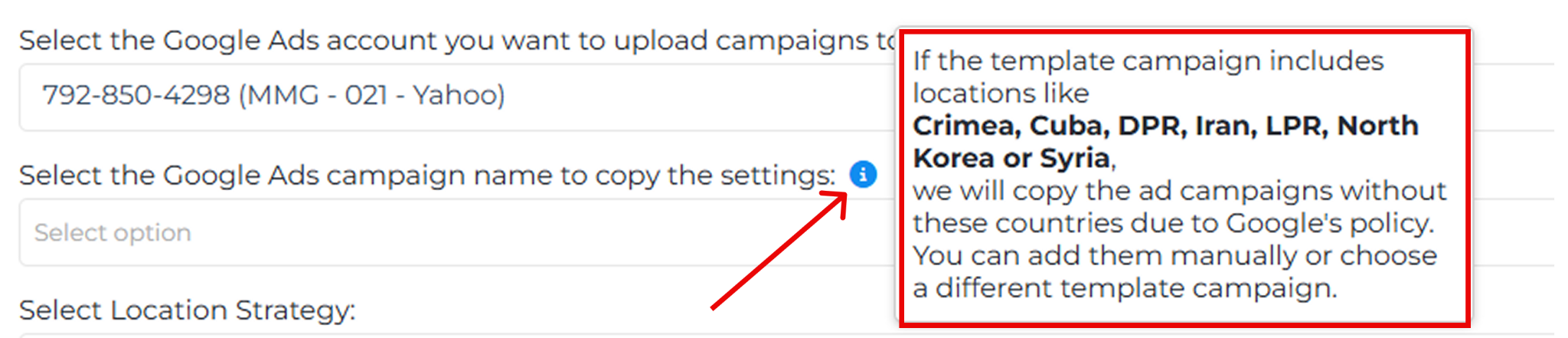
Please note: if the template campaign includes the following geos — Crimea, Cuba, DPR, Iran, LPR, North Korea, and Syria — the campaign will be copied without them in accordance with Google’s policy.
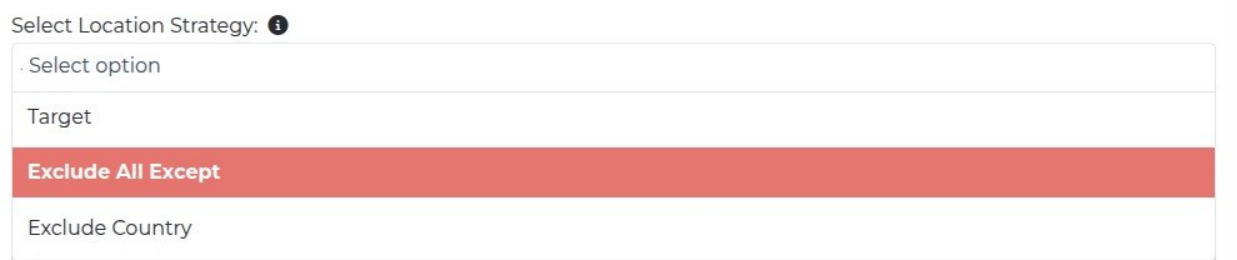
Select Location Strategy: choose the strategy to use:
- Target: target only the selected country.
- Exclude All Except: exclude all countries except the selected one.
- Exclude Country: exclude the selected country or countries, targeting the rest of the world (relevant when working with RSOC).
In Paste the previously generated System Names from Babkee you need to paste the system names from Babkee system. Then click the ‘Init Promo Fields’ button and fill out creatives for every ad group.
If you created an ad group using Adgroup Form Generator and clicked Go to Campaign Generator button, all System Names will be added automatically.
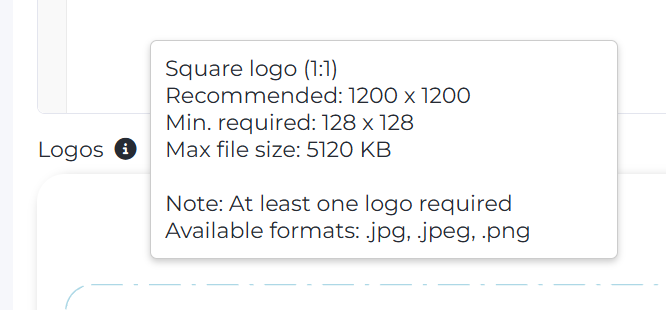
In Logos field, add your logos. Acceptable sizes can be found in the Info tooltip by clicking the icon.
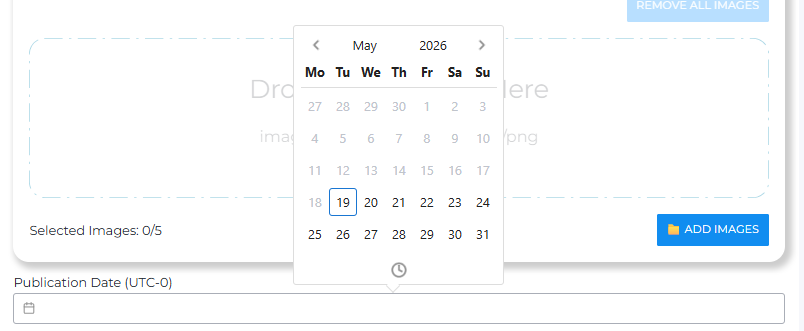
Publication Date is the date and time when the selected ad groups will be automatically launched and uploaded.
Init Promo Fields button checks the correctness of your System Names and verifies the existence of ad groups for them. If everything is correct, Campaign Promo Fields section will open for you.

Helpful tip: You can collapse a section using the arrow in the top right corner. For example, you can collapse Main Form and work only with Campaign Promo Fields.
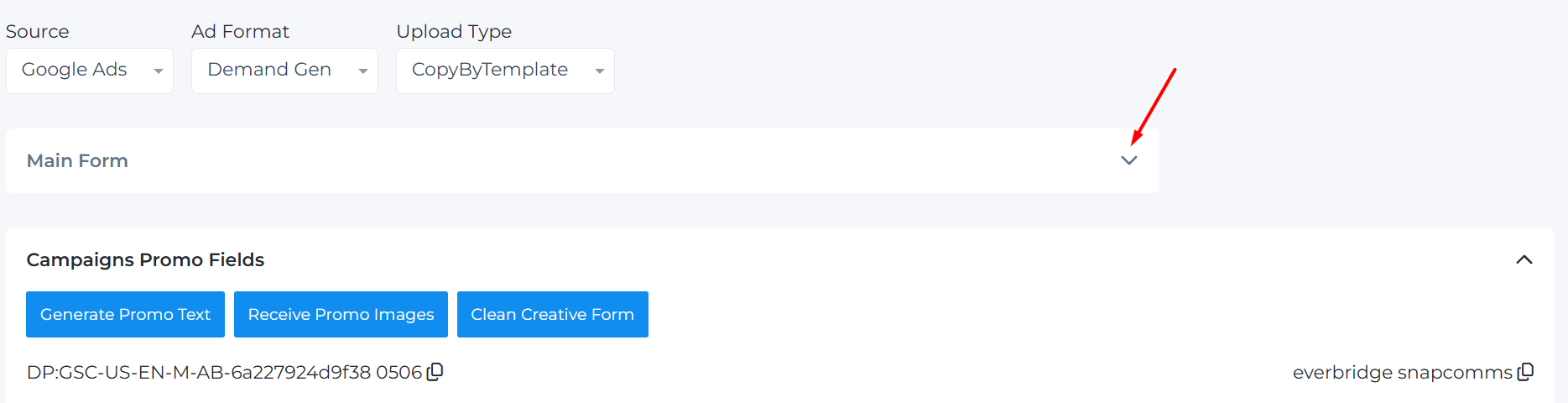
The Campaigns Promo Fields section includes the following elements:
- Request actions: buttons for Generate Promo Text, Receive Promo Images, and Clean Creative Form.
- Ad group name (System Name): the keyword is displayed to the right of the name; you can copy it if needed using the Copy button.
- Target Location field.
- Image management field.
- Ad text management field.

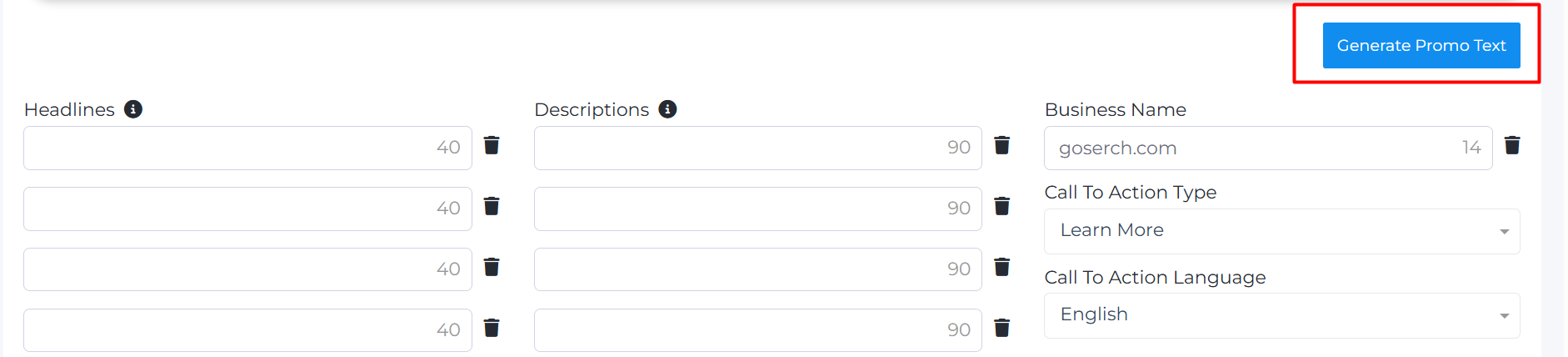
The Generate Promo Text button (located at the very top above Target Locations) generates Descriptions for all ad groups based on the Search Labels + Keyword for each feed; the Headline is generated based on the keyword. The language for all elements (Headlines and Descriptions) is pulled from the Ad Group.
The Receive Promo Images button generates images for all the created ad groups after clicking the Generate Promo Text button.
The Clean Creative Form button clears the System Names field and all generated texts and images, while keeping important settings intact:
- the selected Google Ads account,
- campaign template,
- geolocations,
- bidding values (if specified),
- logos.
After clearing the form, you can add new System Names and click Init Promo Fields again to create new creatives while retaining the other filters.
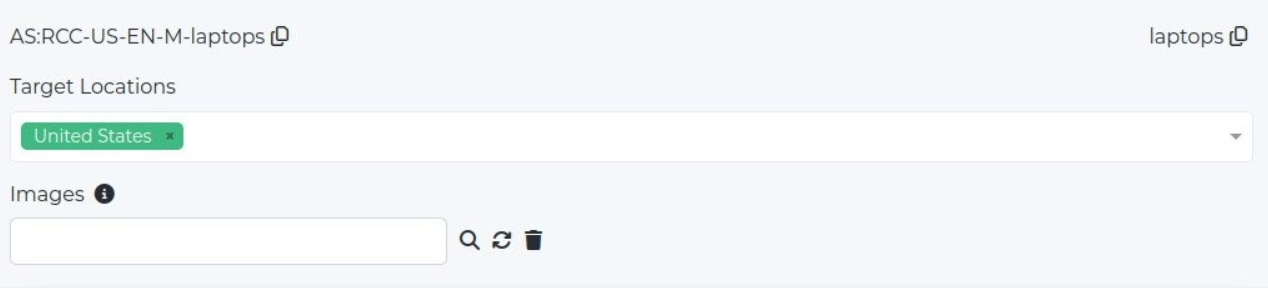
The Target Location field is located above the image management field and automatically populates the country. This allows you to upload ad groups to different geos within the same account. You can add your own list of countries by copying the selected countries as a column, and they will appear in the Select options.
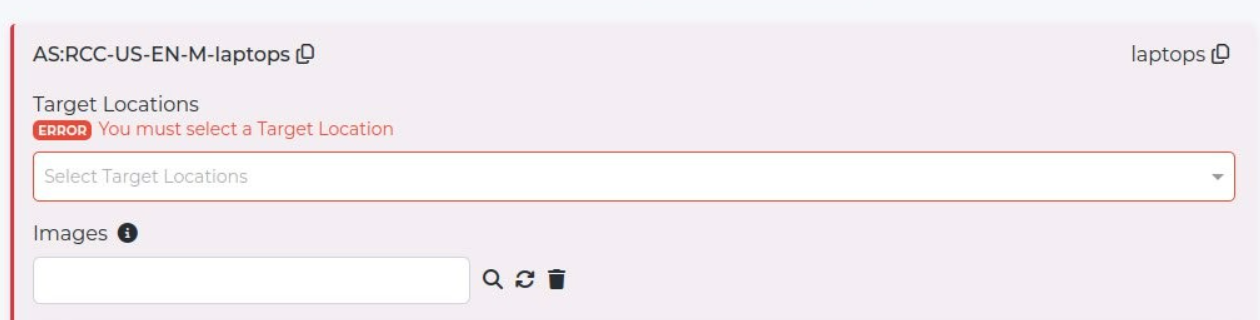
If you remove the country from Target Location field, the system will show an error when you click Create Campaigns button and will not allow ad group to be uploaded until the field is filled in.
If the generated images don’t suit you, enter your keyword in Images field and press Loupe icon to search for new options.

- Regenerate icon refreshes images based on the entered query.
- Trash (Delete) icon deletes the current search query in the Images field.
- Remove All Images button deletes all images at once.
Individual images can be deleted manually through the user interface by clicking the cross in the upper right corner of each image.
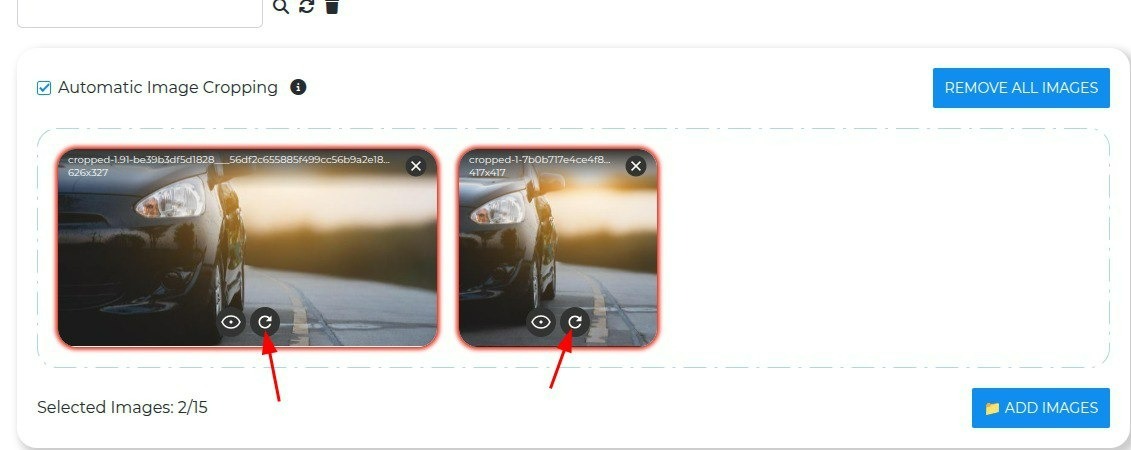
Note: If an image contains an error, it will be highlighted with a red border, and clicking on the pencil icon will show a description of the issue.
When uploading images, if a server error occurs, the image is marked with a red border, and a regeneration icon appears below it.
For Headlines, 30 regeneration attempts are available; for Descriptions, 15 attempts each. To generate new texts for all ad groups, simply press the button again. The numbers in the text field indicate how many characters are remaining.
Note 1: If a Description is too long, it can be deleted without causing errors.
Note 2: If Search Labels are not added for the Feed, the system will be unable to generate Headlines, Long Headlines, and Descriptions. In this case, you need to send a request to @BabkeeBot to add new variants.
- The Business Name is generated automatically. If the domain is too long, we shorten it to the main name. If it is still too long after that, the phrase “Search ads” is used instead.
- In the Call To Action Type field for Google Ads, the default option is Learn More. You can select any phrase and set any language in the Call To Action Language dropdowns.
Clicking the Generate Promo Text button located to the right above Business Name will generate a unique text only for that specific ad group.
To create campaigns, click the Create Campaigns button at the very bottom of the page. The Save Draft button saves the current request as a draft — useful when working with pre-approved ad groups.
Template Campaign for Demand Gen Google Ads
For Demand Gen in Google Ads, we now clone not only the campaign and AdGroup settings, but also the settings from the Ad level.
Therefore, the template campaign must follow the new rules:
- The campaign must contain only one AdGroup with the status Active or Paused.
- This AdGroup must contain only one Ad with the status Active or Paused.
- AdGroups and Ads with the Removed status are not counted or searched.
If the template campaign contains more than one AdGroup, an error will appear.
If the AdGroup has no Ads or more than one Ad, an error will also appear.
Before generation, please check the template campaign and leave only one suitable AdGroup with one Ad.