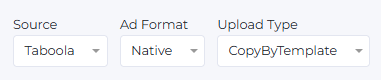
To get started, select a traffic source (Source), then specify filters for Ad Format and Upload Type.
If you created an ad group using the Adgroup Form Generator and clicked the Go to Campaign Generator button, all filters will be filled in automatically.
After that, you will see the Main Form section, which contains the following fields to fill out:
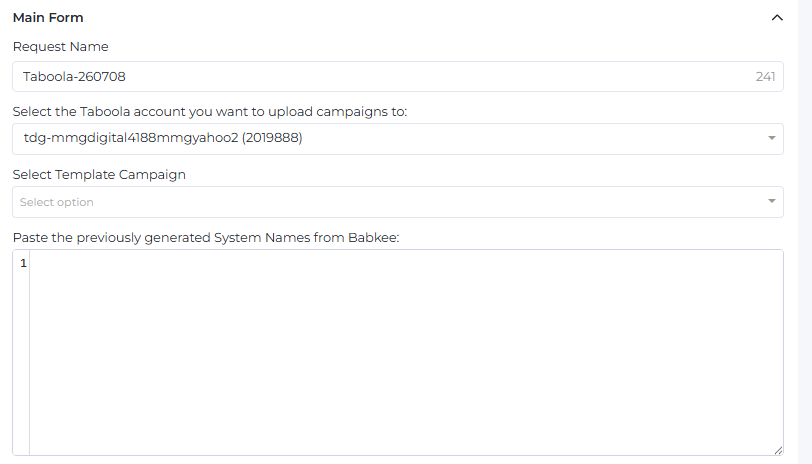
- Request Name: This field is filled in automatically and by default contains a combination of Source + Date (the selected source plus today’s date). You can edit or enter your own name if needed.
- Select the Taboola account you want to upload campaigns to: Choose the Taboola account where your ad groups will be uploaded. The last selected account will be saved automatically after page refresh. You can also enter the account ID here to quickly find the right account.

- New Bid: This field only appears when a bidding strategy (Target CPA) is active in the template campaign. You can enter a new bid value here. If left empty, the bid from the template will be used.

- Select Template Campaign: A list of template campaigns is provided here for copying settings.

- To add your own template campaign to this list, go to Management → Source Campaign → Source Campaigns. Use the Bulk Changes button to mark the campaign as a template.
- If the campaign is not listed, go to Tools → Partner Campaigns Searcher, fill out the form, and press Filter. The request will process, and the campaign will become available in the Source Campaigns page.
Note: If you cannot add or find the template campaign through the above methods, please:
- Go to the campaign settings on the source side where the campaign was created.
- Check if the template campaign has a URL generated specifically for it.
- Ensure the ad group is active, but the creative is paused.
- Refresh data in the Partner Campaign Searcher.
- For URL generation, go to the Adgroup Form Generator. Specify Source, Partner, Site, Market, Device, and any keyword. Paste the generated URL into the Source field in the template campaign.
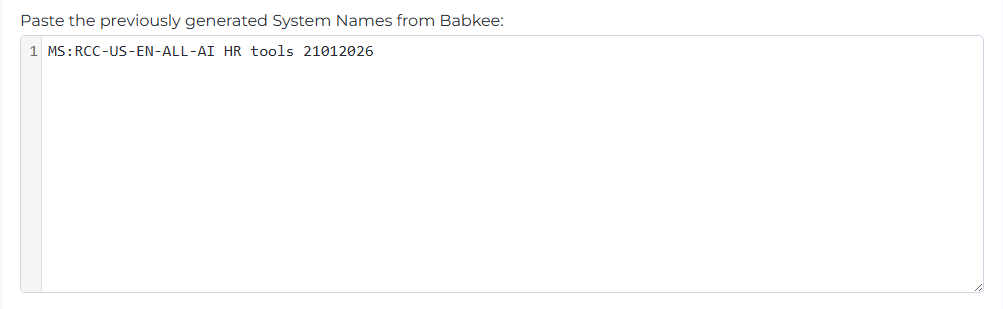
- Paste the previously generated System Names from Babkee: This field is for pasting campaign names from Babkee. You can also paste a list of ad groups with different geos, but only within the same site.
If you created an ad group via the Adgroup Form Generator and clicked Go to Campaign Generator, all System Names will be added automatically.
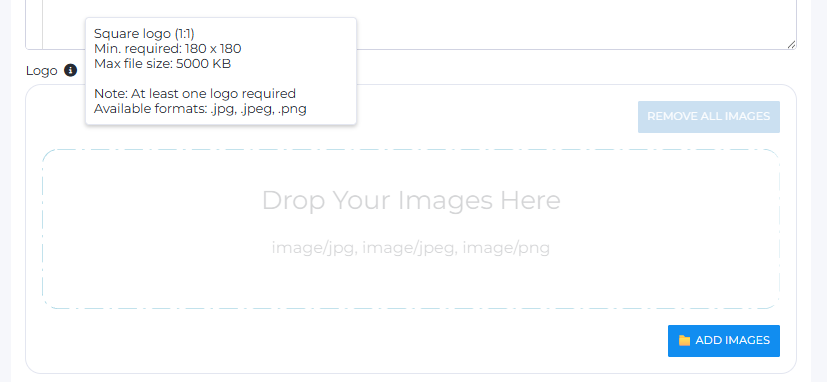
- Logos: Add your logos here. Allowed sizes can be found by clicking the Info icon near the field.
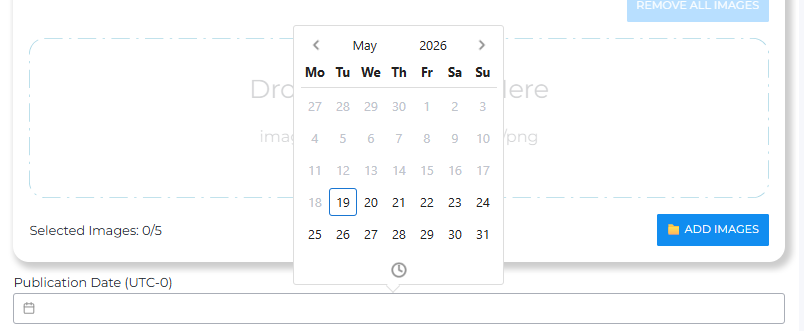
- Publication Date: The date and time when the selected ad groups will automatically start uploading.
- The Init Promo Fields button checks if your System Names are correct and if the corresponding ad groups exist. If all is correct, the Campaign Promo Fields section will open.

You can collapse sections using the arrow in the top right corner. For example, collapse the Main Form and work only with Campaign Promo Fields.
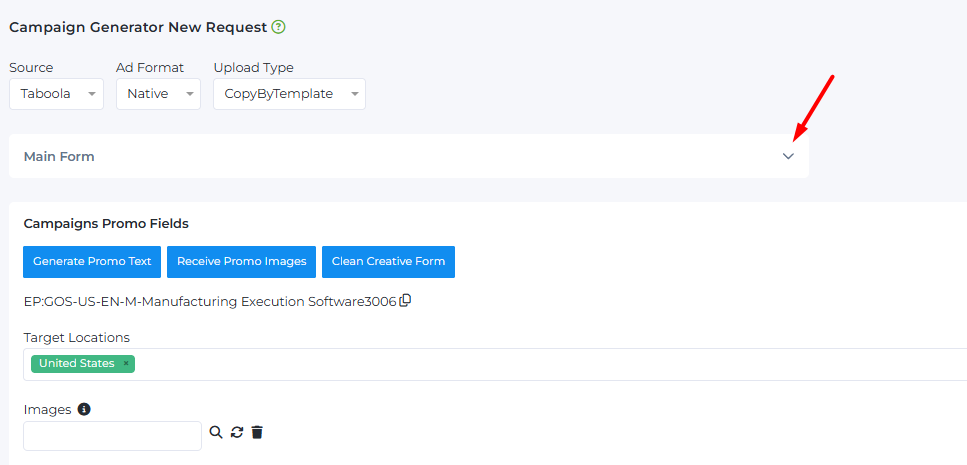
The Campaigns Promo Fields section contains:
- Request actions: Generate Promo Text, Receive Promo Images, Clean Creative Form buttons.
- Ad group name (System Name): keywords are shown on the right, and you can copy them with the Copy button.
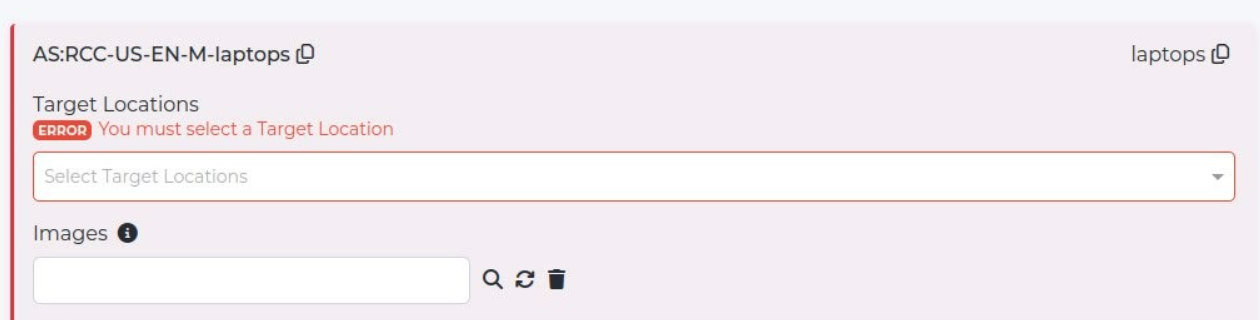
- Target Location field.
- Image management area.
- Ad text fields.

- The Generate Promo Text button (at the top above Target Locations) generates headlines and descriptions for all ad groups based on Search Labels + Keywords for each feed. The language of all headlines and descriptions is taken from the Ad Group.
- The Receive Promo Images button generates images for all ad groups after clicking Generate Promo Text.
- The Clean Creative Form button clears System Names and all generated texts and images but keeps key settings:
- selected Taboola account,
- template campaign,
- geolocations,
- bid values (if set),
- logos.
After clearing, you can add new System Names and click Init Promo Fields again to create new creatives while keeping other filters.
- The Target Location field is placed above the image area and auto-fills the country. This lets you upload ad groups to different geos within one account. You may add your own list of countries by copying them line-by-line; they will appear in the Select options.
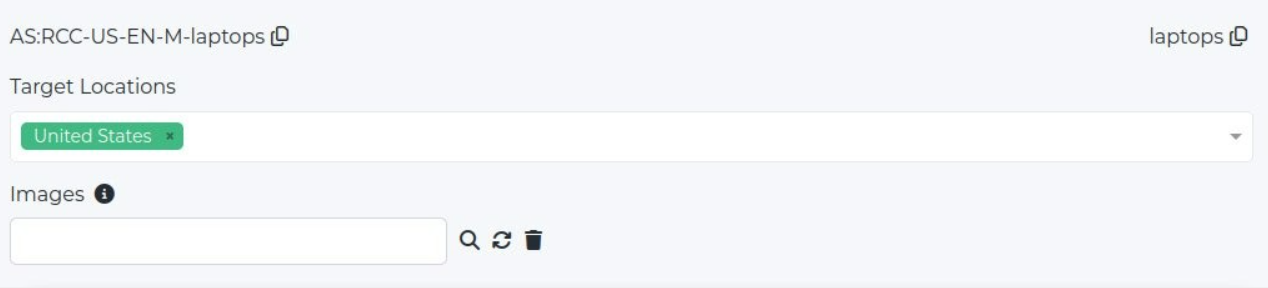
If you remove a country from Target Location, clicking Create Campaigns will cause an error and prevent uploading until the field is filled.
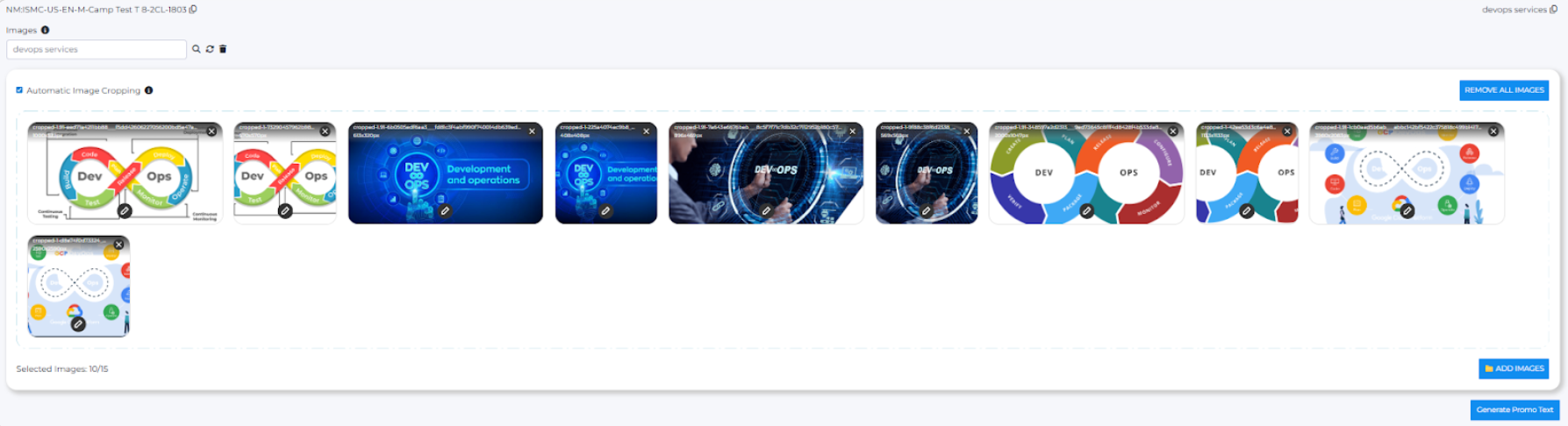
If generated images don’t suit you, enter your keyword in the Images field and click the magnifier icon to search for alternatives.

Other icons near the magnifier:
- Regenerate icon updates images based on the entered query.
- Trash icon clears the current search query in Images.
- Remove All Images button deletes all images at once.
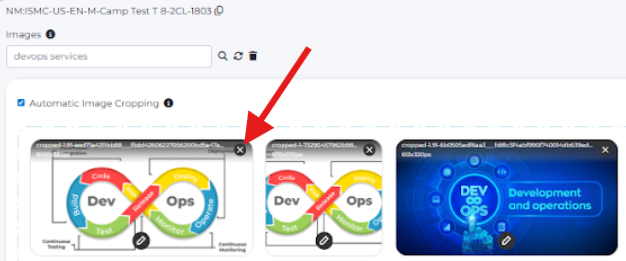
Individual images can be deleted by clicking a small cross in the upper right corner of each image.
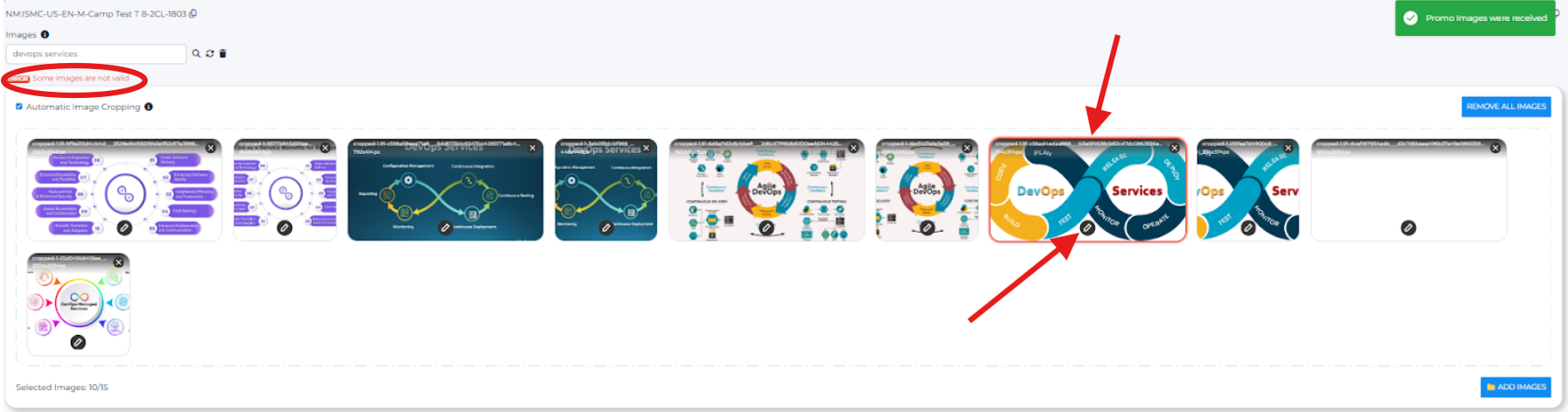
Note: If you get a “Some images are not valid” error, look for the image framed in red. Clicking the pencil icon below it shows a description of the problem.
To generate new texts for all ad groups, click Generate Promo Text at the top. The number in the text field shows how many characters remain.
To update text only for selected rows, click the double-arrow Regenerate button. Text will change only for chosen rowх.

Note: You don’t have to create an ad group with three headlines. You can create it with just one creative — one headline and one description. Leave unwanted headline fields empty or delete them using the trash button.
Clicking Generate Promo Text next to Business Name generates a unique text specifically for that ad group.

Business Name is generated automatically. If the domain name is too long, it’s shortened to its main part. If still too long, “Search ads” will be used instead.
The Call To Action Type defaults to “Learn More” for Taboola. You can select any phrase from the dropdown. If you create an ad group in a native language (e.g., German), you don’t need to translate it yourself — it will be translated automatically based on the language in System Name.
To create campaigns, click Create Campaigns at the bottom of the page.
The Save Draft button saves the current request as a draft, useful when working with pre-approved ad groups.